Comments
Moderating replies to your blog posts: three states, a reply that publishes under your name, and one delete that takes a thread with it.
Admin → Comments
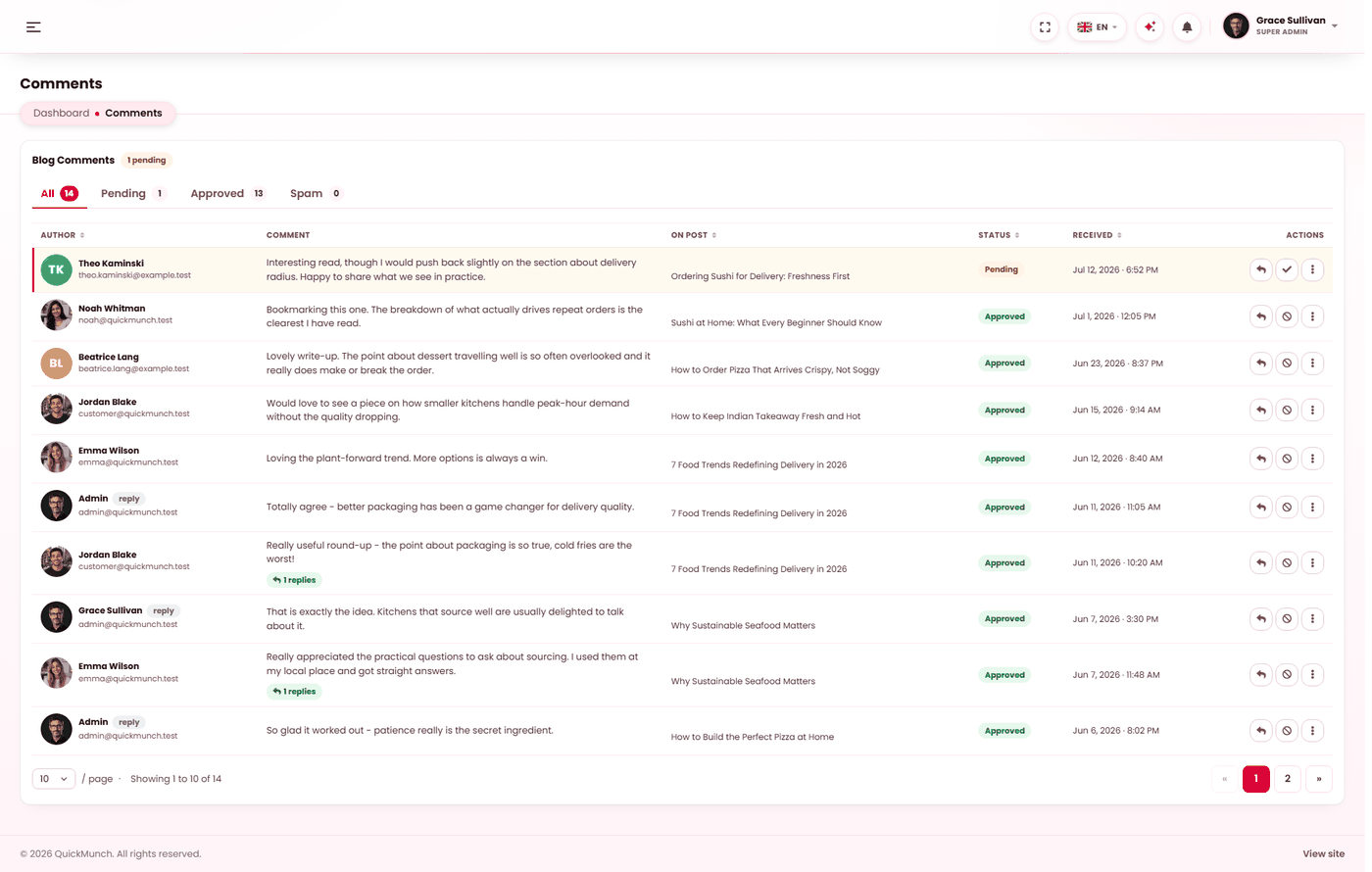
Blog comments queued for approval.
The three states
| Status | Meaning |
|---|---|
| Pending | Submitted and not yet decided. Invisible to visitors. |
| Approved | Live under the post. |
| Spam | Kept but never shown. Filed rather than deleted, so you can look back at a pattern. |
Nothing appears on a post until you approve it, so an unmoderated queue is a quiet queue rather than an embarrassing one.
Working the queue
Tabs across the top filter by status and carry a count each, so you can see at a glance whether anything is waiting. Whatever the filter, pending comments sort to the top, then newest first — the screen puts the decisions in front of you before the archive.
Each row carries the comment, who left it, and which post it is on. The actions are Approve, mark Spam, put back to Pending, Reply and Delete.
Replying
Reply opens a dialog showing the comment you are answering, and your reply publishes threaded underneath it on the post, as the platform rather than as a visitor.
Deleting
Deleting a comment deletes its replies too, including your own — the dialog says so before you confirm. That is what keeps a thread from being left with answers to nothing.
For anything you might reconsider, Spam is the better move: it hides the comment permanently but keeps it.
Deciding what to hide
The same line that works for Reviews: hide what breaks your rules, not what you disagree with. Abuse, personal data, and link spam are the case for spam-filing. A critical comment answered in public does you more good than a deleted one.
When it doesn't work
An approved comment is not on the post
Check the post itself is still published — a comment cannot appear on a draft.
Comments disappeared entirely
Their post was deleted. Comments belong to a post and go with it.
My reply is not showing
It publishes under the comment it answers. If that comment was spam-filed afterwards, the whole thread goes with it.