Devices
Registering a till, a kiosk or a kitchen display — what it is bound to, what hardware it has, and how it behaves.
Restaurant → Devices
Everything starts here
- Add device — register it once; it is then reached by its own link.
- The tiles — how the fleet is doing: active, idle, orders and takings.
- Each row — the device's type, binding, order handling and link.
- The switch — disable a device without deleting it.
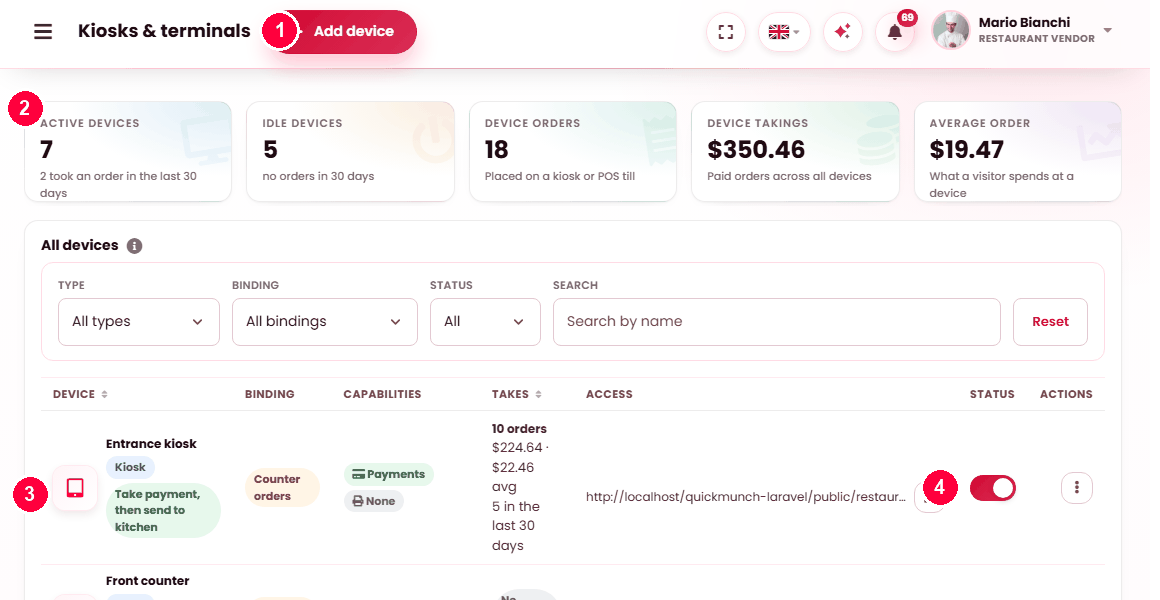
Tills, kiosks and kitchen displays are all devices; what differs is the type you pick and what you bind it to.
The three types
| Type | Bound to | Used by |
|---|---|---|
| POS till | A table, or the counter. | Staff — see Point of sale. |
| Kiosk | A table, or the counter. | Customers — see Kiosks. |
| Kitchen display | A station, or the whole kitchen. | The kitchen — see Kitchen display. |
Binding
Binding a till or kiosk to a table means orders taken on it belong to that table without anybody choosing one. Bind to the counter instead and it takes counter orders.
If a bound table is later made inactive, the screen warns you and the device falls back to counter orders rather than breaking.
A kitchen display binds to a station, or to the whole kitchen if you run one screen.
Order handling
Three behaviours, and the choice is about how your floor works rather than about the hardware:
| Mode | What happens when an order is placed | Suits |
|---|---|---|
| Take payment, then send to kitchen | Paid first, then it reaches the kitchen. | Counter service and kiosks — nothing is cooked unpaid. |
| Send to kitchen (pay later) | Straight to the kitchen; the bill is settled at the end. | Table service. |
| Hold for staff (no auto-send) | Nothing happens until a member of staff acts. | Anywhere an order needs checking before it is cooked. |
Hardware
| Capability | Notes |
|---|---|
| Takes payment | Whether money can be taken on this device at all. |
| Card reader | With the Stripe Terminal reader ID. The ID is what makes it a reader: without it the device takes counter payment only — a kiosk never offers Pay by card here, a till never offers the reader tender. There is no simulated reader. |
| Receipt printer | With its connection: USB, serial, HID or browser print. |
| Cash drawer | Opens on cash payment. |
| Barcode scanner | Scans a dish barcode straight onto the ticket. |
| On-screen keyboard (kiosks) | Auto / Always / Off — the keyboard the review step raises for the name and phone; see Kiosks. |
| Auto-print receipt on payment | Prints without anybody asking. |
Browser print is the connection to start with — it needs no driver and works on any machine. The others are for a printer wired to that till specifically.
Registering a card reader
Card payment on a device — the till's reader tender, a kiosk's Pay by card here — runs on a Stripe Terminal smart reader: a BBPOS WisePOS E or a Stripe Reader S700, registered to your Stripe account. There is no simulated reader; until a reader ID is saved the device takes counter payment only.
- Register it with Stripe. In the Stripe Dashboard open Terminal → Locations
and create a location for the venue, then Terminal → Readers → Register reader and type the
pairing code the reader shows on its own screen. Stripe lists the reader with an id that starts
tmr_— copy it. - Save it on the device. Here, open the device: Takes payment on this device on, Has a card reader on, and paste the id into Card reader ID. A self-order kiosk also needs Has a receipt printer on. Save. The reader tender (till) or Pay by card here (kiosk) now appears on that device and on no other.
- Put them on the same network. The device's browser talks to the reader over the local network, in Chrome or Edge over HTTPS. Stripe must be enabled for the restaurant.
- Test it before going live. With Stripe in test mode, place an order and pay with one of Stripe's physical test cards: the amount shows on the reader, the order is marked paid only after the server has read the payment back from Stripe, and the charge appears in the Stripe test-mode dashboard. Switch the restaurant's Stripe keys to live and the same reader takes real cards.
The reader id is the whole identity: a different reader on the account, even a working one, is "not found" on this device, because nothing is ever charged on a guess.
The figures
| Figure | Meaning |
|---|---|
| Active devices | How many took an order in the last 30 days. |
| Idle devices | How many took none. A kiosk nobody uses is a kiosk in the wrong place. |
| Device orders / takings | What was placed and paid across all of them. |
| Average order | What a visitor spends at a device — the number to compare against your online average. |
Each row also shows its own take: order count, average, and how long since it last did anything.
Opening a device
Open POS and Open kitchen board open it directly. Copy link gives you the address to paste into the browser on the machine itself — which is how a kiosk tablet or a kitchen screen is set up.
When it doesn't work
Orders from a kiosk have no table
It is bound to the counter, or its bound table was made inactive and it fell back.
Nothing prints
Open the device at Restaurant → Devices and check three fields: Has a receipt printer is on, Printer connection matches how it is actually attached, and Auto-print receipt on payment is on if you expect it without pressing print. Set the connection to Browser print first — it needs no driver and proves whether the printer works at all.
The card reader is not offered
At Restaurant → Devices, open the device and check three things: Takes payment on this device is on, Has a card reader is on, and the Card reader ID holds the reader's Stripe Terminal id. With no ID the reader is deliberately not offered — the device takes counter payment only. A self-order kiosk additionally needs Has a receipt printer. If all of that is set and it still does not appear, your platform has no Stripe keys for this restaurant.
A device link says it is unknown
It was removed, or switched off. Check the list.