Kiosks
A tablet the customer uses themselves — at a table, or at the counter.
Restaurant → Devices
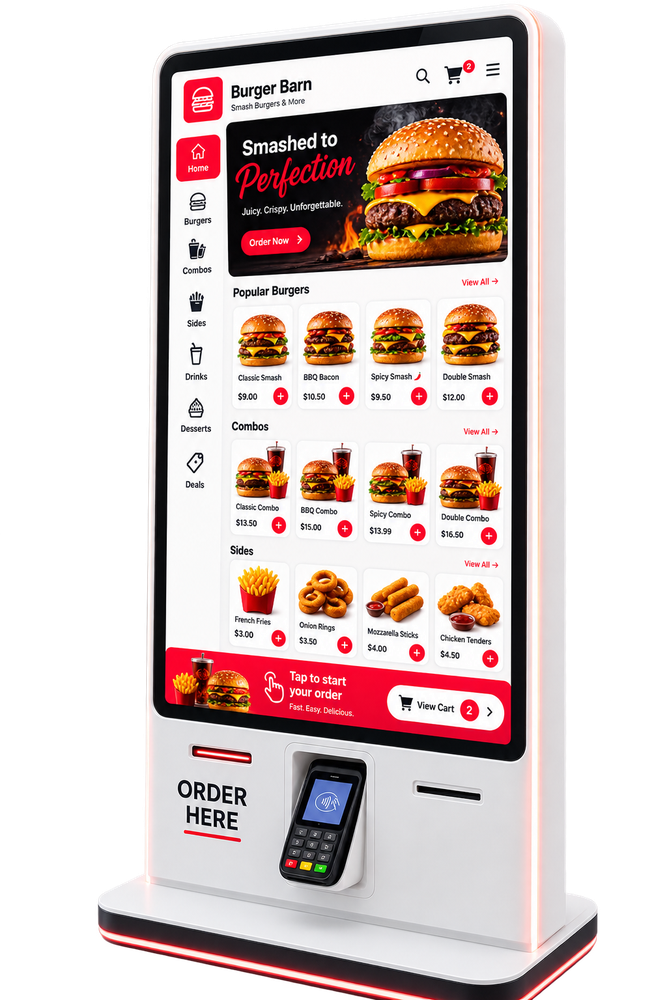
A kiosk is a tablet or a floor-standing terminal running the ordering screen in a browser. The product supplies the screen; the stand and the card reader are ordinary hardware.
- Customers browse and order themselves, without waiting for staff.
- Bound to a table or to the counter, so the kitchen knows where it came from.
- Takes payment on the device, or sends the order for payment at the counter.
Set one up on Devices, then open its link on the tablet.
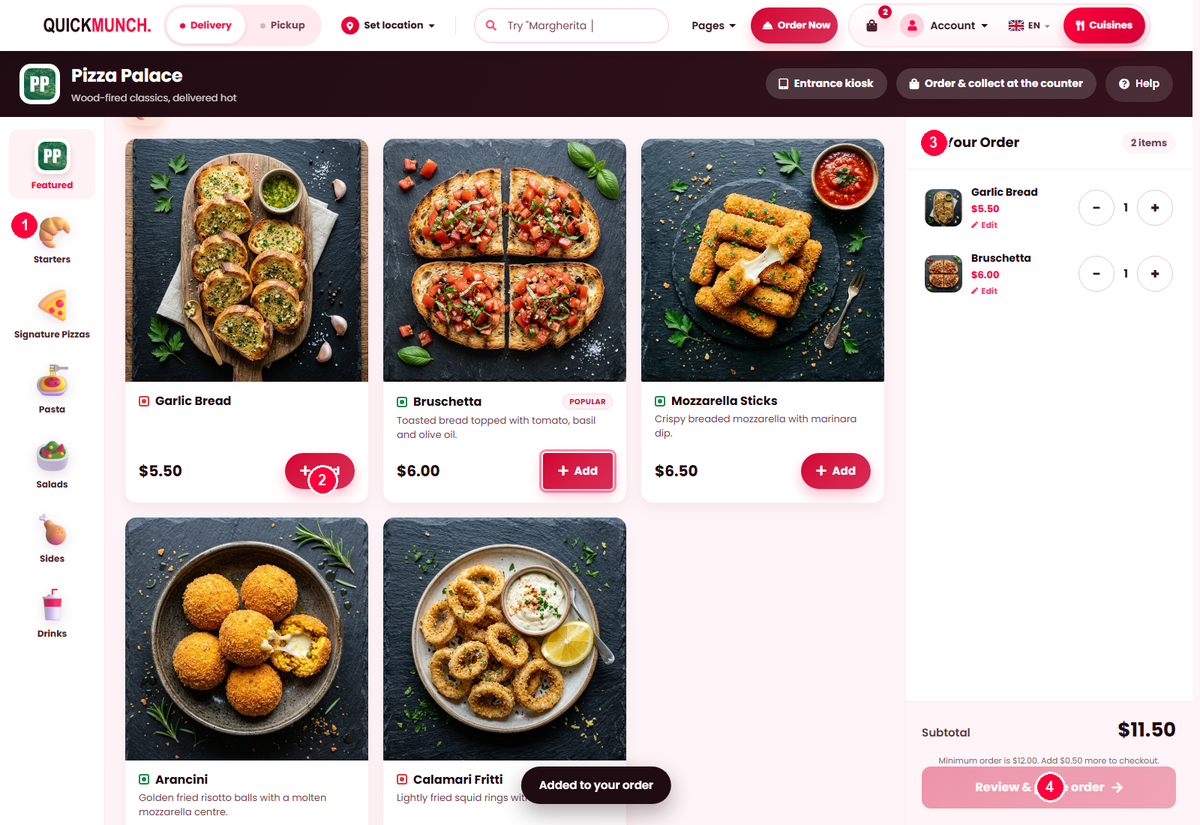
The kiosk screen
- Categories down the side — the same menu as your storefront.
- Tap a dish to open it and add it.
- Your order builds on the right, with a running subtotal.
- Review & place order finishes it.
The device name and Help sit in the bar at the top. There is no browser chrome: the kiosk fills the screen and does not scroll the page behind it.
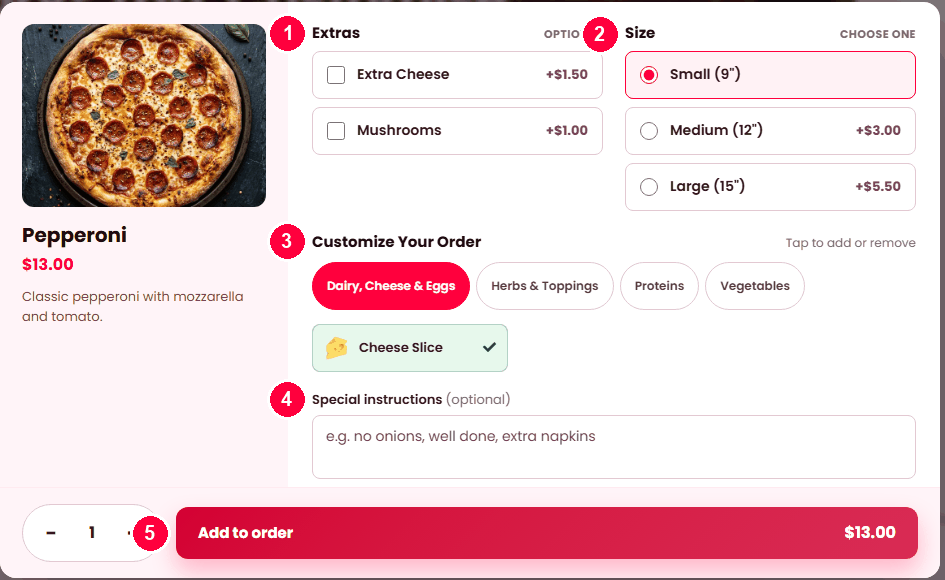
Choosing a dish
- Extras — paid additions, optional.
- Size — where a dish has sizes, one must be chosen.
- Customize your order — the dish's own ingredients, grouped. Tapping one adds or removes it, so a customer can take the onions off without typing a word.
- Special instructions — free text, for anything the options do not cover.
- Add to order, with the price updated for what was chosen.
A dish with none of these configured opens with just the quantity and instructions — see Menu dishes to add options.
What a customer sees
Your menu, laid out for touch: featured dishes, today's offers, chef's picks, and categories down the side. They build a basket, review it, choose how to pay, and place the order. Paying at the counter (cash or card) asks for a first and last name — that is what the cashier finds the order by and what the kitchen calls — and, under them, an optional phone number. On a station with a registered card reader the order is paid on the screen, so only the optional phone is asked. The phone is how the counter reaches them and, where the venue runs loyalty on its kiosks, it is also their membership: the order is placed for the member it names (created on the spot if needed) and earns points when it is paid. A reader-paid ticket carries the member's name, else "Kiosk guest".
A counter-paid order is held for the counter, not cooked: with the kiosk's Order handling set to Take payment, then send to kitchen it waits on the till's Recall screen under the guest's name and order number, and reaches the kitchen the moment the cashier takes the money. The guest's screen says so — "give your name and order number at the counter". A kiosk set to Send to kitchen (pay later) is for table service, where the bill is settled after the meal.
A kiosk bound to a table says Dine-in · Table 4; one at the counter says Order & collect at the counter. The customer never chooses — the binding decides.
The Help button
A customer stuck at a kiosk can press Help, and your staff are notified with which kiosk it was. Pressing it again tells them help is already coming rather than sending a second alert.
It is the single feature that decides whether kiosks work in practice. Somebody who cannot finish an order and cannot get attention simply leaves.
Setting one up
- Register it on Devices as type Kiosk.
- Bind it to a table, or leave it on the counter.
- Choose the order handling — for a customer-facing kiosk, take payment then send to kitchen is the usual answer.
- Copy link and open it in the browser on the tablet.

A table with a kiosk can also be given one directly from the floor plan, which is quicker when you are setting up a room.
Typing on a standalone kiosk
The review step asks for a name and a phone number, so a kiosk needs a way to type. Tablets bring their own keyboard; a Windows touch screen running a browser in kiosk mode often does not raise it. So the kiosk carries its own on-screen keyboard: tapping the name fields opens letters in the venue's language, tapping the phone field opens a number pad, and it slides away on Close or when the order is placed.
Set it per kiosk under Restaurant → Devices → (the kiosk) → On-screen keyboard: Auto (the default) shows it unless the device has its own keyboard, Always forces it — the setting for a Windows touch screen — and Off is for a kiosk with a hardware keyboard attached. If you would rather rely on the Windows touch keyboard, set Windows to "Show the touch keyboard when there's no keyboard attached" and switch this to Off.
What a kiosk cannot do
It takes orders. It does not do refunds, discounts, splits or the drawer — those belong to a member of staff at the till. That division is deliberate: a device a customer holds should not be able to give money away.
When it doesn't work
"Ordering is temporarily unavailable"
The kiosk lost its connection, and it tells the customer to order at the counter rather than leaving them tapping. If your platform has offline terminals on, orders are held instead — see Working offline.
Orders arrive with no table
At Restaurant → Devices, open the kiosk and set Bind to a table. If it is already bound, that table has been made inactive on the floor plan and the kiosk has fallen back to counter orders — the device row says so.
The customer cannot pay on it
At Restaurant → Devices, open the kiosk: switch Takes payment on this device on, and set Order handling to Take payment, then send to kitchen.
Dishes are missing from the kiosk
Same rules as the storefront: off sale, no category, out of stock, or outside their serving time — see Menu dishes.