Classifications
How a customer finds a restaurant: the cuisines, food types and store types they browse by — and how you build those lists.
Admin → Classifications
Cuisines, food types and store types — the lists your filters read from.
Discovery, not menus
There are two vocabulary screens and they do different jobs. This one is about finding a restaurant. The other, Menu, is about describing a dish.
| Screen | Answers |
|---|---|
| Classifications | "Where shall I order from?" — Italian, coffee shop, bakery. |
| Menu | "What is in this dish, and can I eat it?" — ingredients, allergens, vegetarian. |
The four tabs
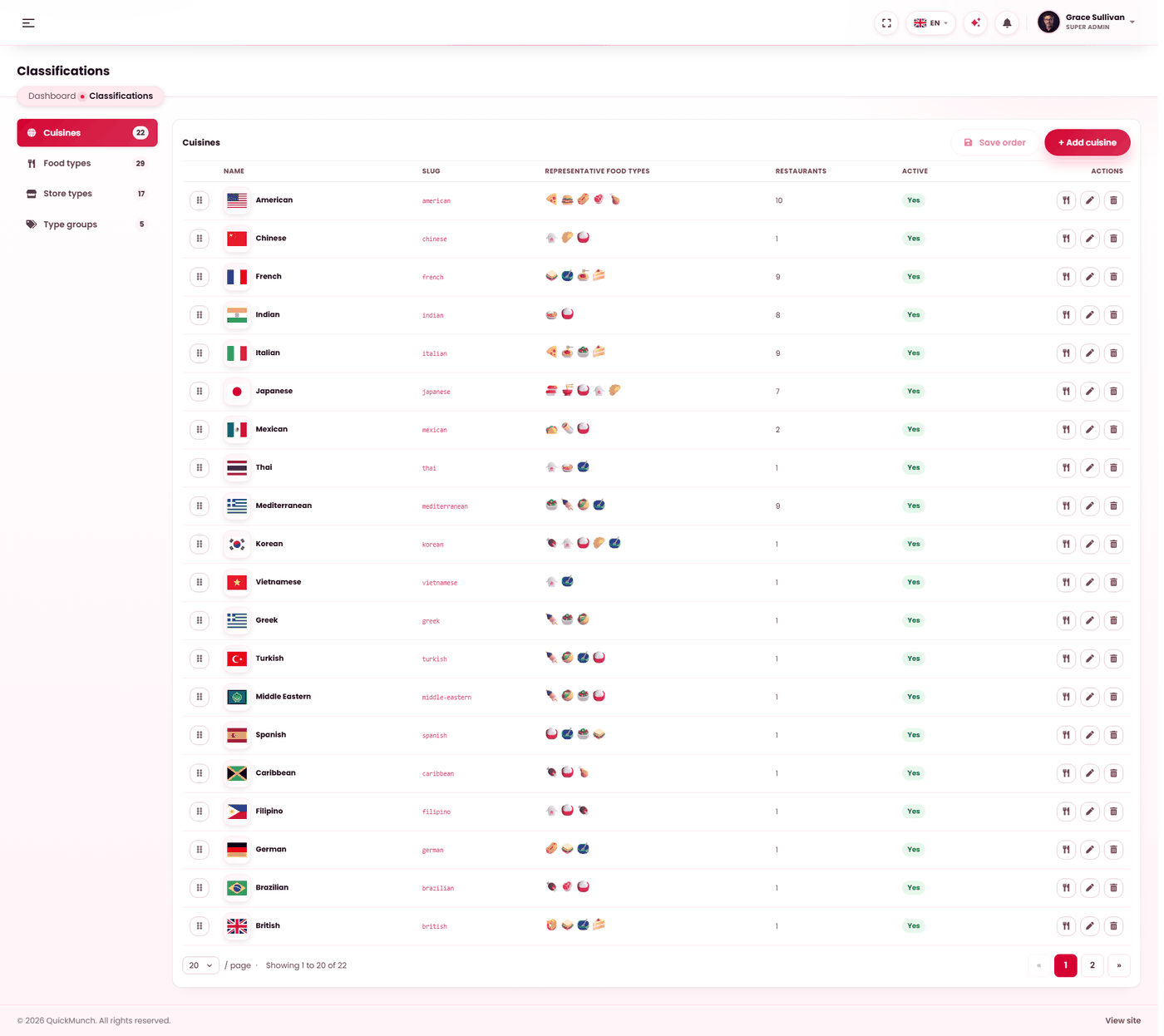
The screen opens on Cuisines; the tabs across the top move between the four lists.
| Tab | What it holds | Where it lands |
|---|---|---|
| Cuisines | Italian, Thai, Lebanese. | One per restaurant — its primary cuisine. |
| Food types | Pizza, burgers, sushi. | A restaurant can carry many. |
| Store types | Restaurant, café, bakery, dark kitchen. | A restaurant can carry many. |
| Type groups | The groupings the two lists above are filed under. | Nothing directly — it organises the other two. |
The hierarchy
Three relationships, and knowing them is the difference between a tidy list and a mess:
| Relationship | How it works |
|---|---|
| Type group → food type / store type | Every food type and store type belongs to one type group. The two are the same kind of record filed under different groups, which is why they share one editor and one Type groups list. |
| Cuisine → food types | A cuisine can be given representative food types — the dish icons shown on its card. Set with Assign food types on the cuisine's row. Presentation only; it does not restrict what restaurants may carry. |
| Restaurant → both | A restaurant has exactly one cuisine, and as many food types and store types as apply. |
So a type group sits at the top of the tree, a cuisine sits beside it rather than above it, and a restaurant reaches into both.
Adding an entry
Every tab works the same way. + Add cuisine — or food type, store type, type group — opens a dialog:
| Field | Rules |
|---|---|
| Name | Required, at most 80 characters, and unique within its list. A duplicate is refused on save. |
| Icon | Cuisines and types carry one. Sources are covered below. |
| Group | Food types and store types only — which type group it is filed under. Only active groups are offered. |
| Active | On by default. Switching it off retires the entry — see below. |
The web address is generated from the name and kept unique, so two similarly named cuisines never collide on the storefront.
Icon sources
The picker offers several, and they can be mixed freely within one list:
- Flag — cuisines only. Auto works the country out from the cuisine's name; you can also pick a specific country instead.
- Font Awesome — a glyph or brand mark.
- Image — anything in the media library, including the illustration and ingredient sets the product ships.
An icon is a pointer, not a copy. Deleting a classification never deletes the image behind it — the media library owns the file, and other screens may share it.
Editing and reordering
Click a row to reopen it in the same dialog. Rows are arranged by dragging the grip at the left, and the order you set is the order customers see — so your strongest cuisines can lead rather than appearing alphabetically.
Removing an entry
One rule covers every list: a row that something still points at is never deleted. The attempt is refused with a count of what would be orphaned, and the In use column shows that number before you try.
| List | Counted as "in use" |
|---|---|
| Cuisine | Restaurants whose primary cuisine it is. |
| Food type / store type | Restaurants carrying it, plus cuisines showing it as a representative food type. |
| Type group | Types filed under it. Move them to another group first. |
Deleting a cuisine that is genuinely unused also clears its representative food-type assignments, so nothing is left dangling.
Set these up before you onboard
Restaurants choose from these lists when they register, and customers browse by them. A platform that opens with three cuisines will have restaurants filed under whichever roughly fits, and fixing that later means revisiting every venue.
Start broader than feels right. Twenty cuisines across ten restaurants gives customers a list of mostly empty pages; add finer classifications as you have the restaurants to fill them.
When it doesn't work
A cuisine page is empty
No approved restaurant carries that cuisine. Either tag one, or retire the cuisine until you have a restaurant for it.
I cannot delete an entry
Something still points at it — the message says how many. Reassign those restaurants, or retire the entry instead.
A group is not offered when I add a type
Only active groups are offered. Retiring a group deliberately stops it being chosen again while leaving what is already filed under it alone.
Customers cannot filter by something obvious
Check the filter is switched on under Search as well as the classification existing here. Both are needed.