TV screens
Menu boards that fill from your live menu, designed here and paired to a TV with a code.
Restaurant → Screens
The screens list
- Add screen — design a new board; New slideshow rotates several.
- The TV address — open it in the TV's browser; it shows a pairing code.
- Your screens — each board with copy, delete and Edit.
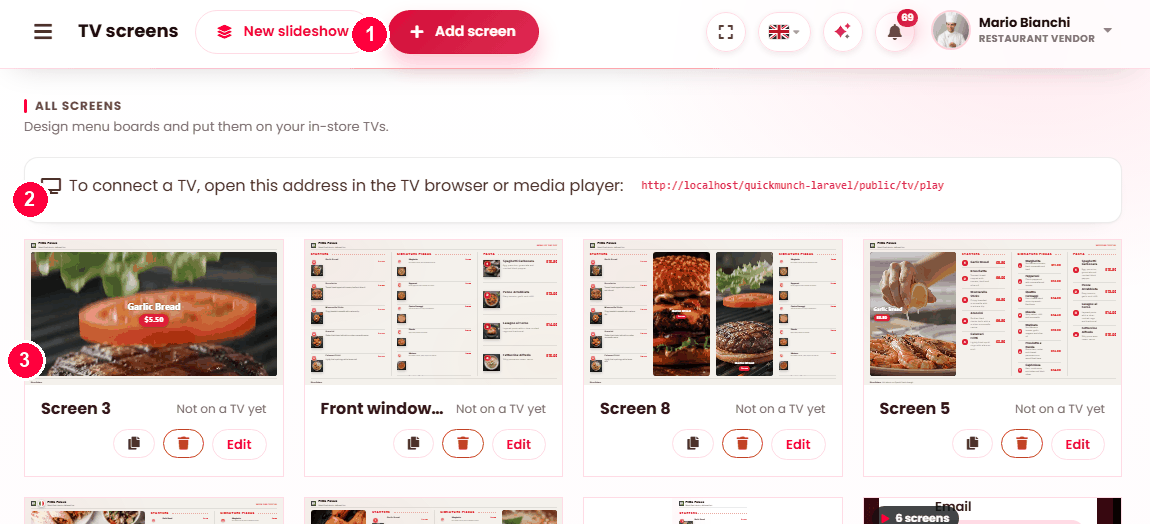
Add a screen
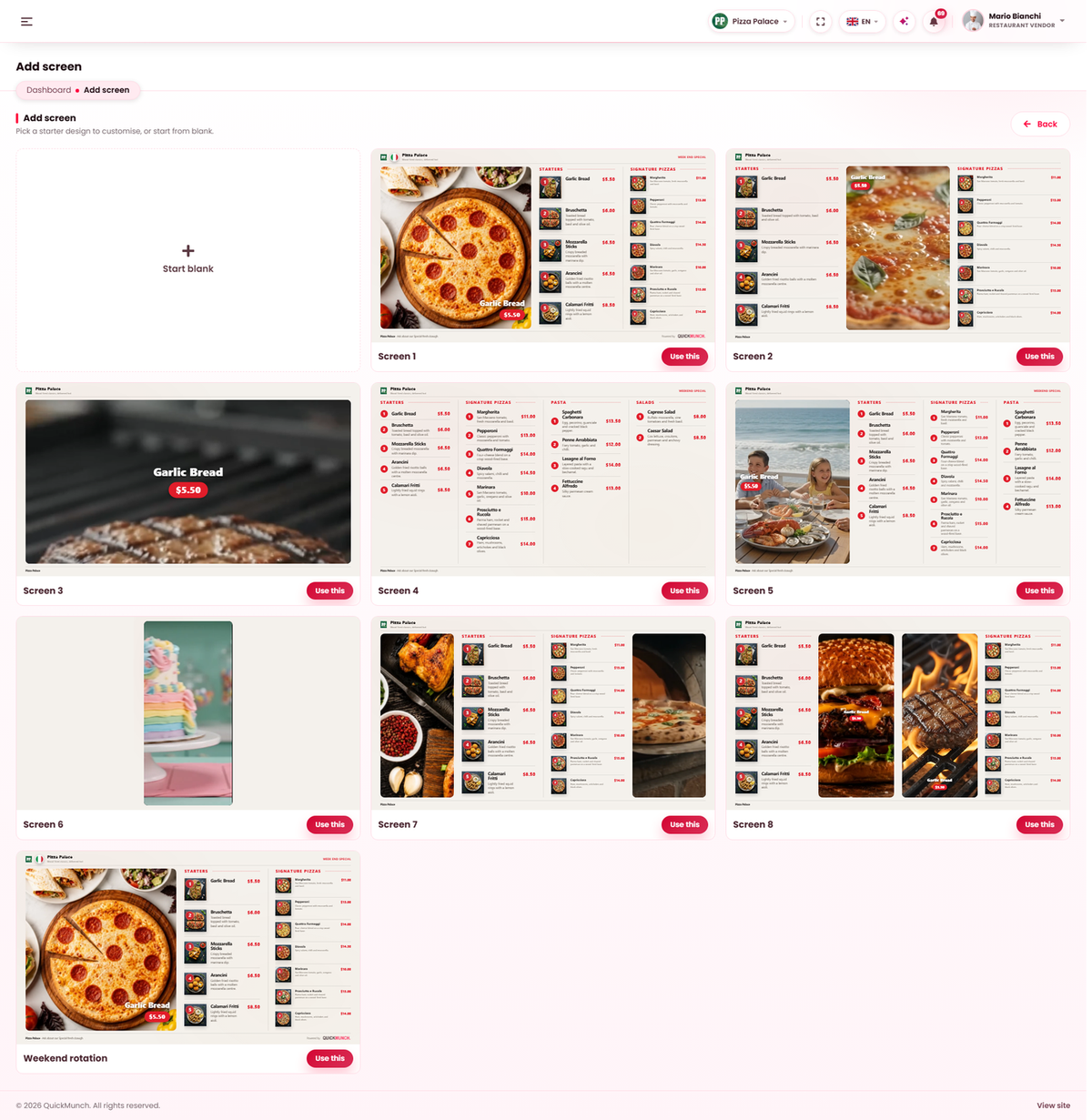
Add screen opens the starter designs — pick one and it copies in, ready to edit. New slideshow instead links boards you already have into a rotation.
Put it on the TV
- On the TV, open the address shown, or scan the QR code. The TV displays a pairing code.
- Type that code into Code from TV, and name the TV if you want.
- Press Pair TV. The board starts playing and stays on it.
Any device with a browser works — a smart TV, a stick, or a small media player.
The screen then reads Connected and counts the TVs showing it — one design can drive several. Disconnect unpairs. Codes are rate-limited, so repeated wrong attempts ask you to wait.

The board fills itself
You design the layout; the dishes and prices come from your live menu. Change a price on Dishes and the board follows. Nobody re-makes a board because a price moved, which is the entire point of it.
Choosing a layout
| Layout | Shows |
|---|---|
| Full menu | Columns of food. The workhorse. |
| Menu + media | The menu beside an image or video panel — left, middle or right. |
| Full-screen video | One dish spotlighted, with or without a product overlay. |
| Featured | A few hero products. |
The preview updates as you go, drawing from your real menu, so what you see is what the TV shows.
Columns
A menu column carries a category, an optional heading, how many items, and a width. Setting a category to Auto takes the next one in menu order — which is how a three-column board fills itself as your menu grows rather than needing rebuilding.
Per column you choose whether to show numbers, descriptions and calories, and where calories sit — beside the name, under the description, or under the price.
Appearance
| Setting | Options |
|---|---|
| Theme | Light, dark, or your own colour with an accent. |
| Orientation | Horizontal or vertical — vertical for a screen mounted portrait. |
| Show | Dish images, header, footer, and the cuisine flag beside your logo. |
Media is an uploaded image or MP4, or a YouTube link.
When it doesn't work
"That code did not match a waiting screen"
The code expired or was mistyped. Reload the TV to get a fresh one.
A freshly uploaded video is not on the board
Save the screen first. The note beside the preview says so — the preview is live, the clip arrives after saving.
The board is empty or half-full
Its columns point at categories with nothing available in them, or the item count is higher than the category holds.
The TV shows nothing after a power cut
Most TVs do not restore a browser page. Either use a media player that reopens the address on boot, or re-open it by hand. It is the commonest real-world failure with menu boards.
Deleting a screen
Any TV showing it disconnects immediately. The confirmation says so.