AI providers
Optional. Bring your own key from any of four providers, choose which features may use it, and give the dashboard a voice.
Admin → Settings → AI
Choose a provider, paste your own key, and pick which assistants are available.
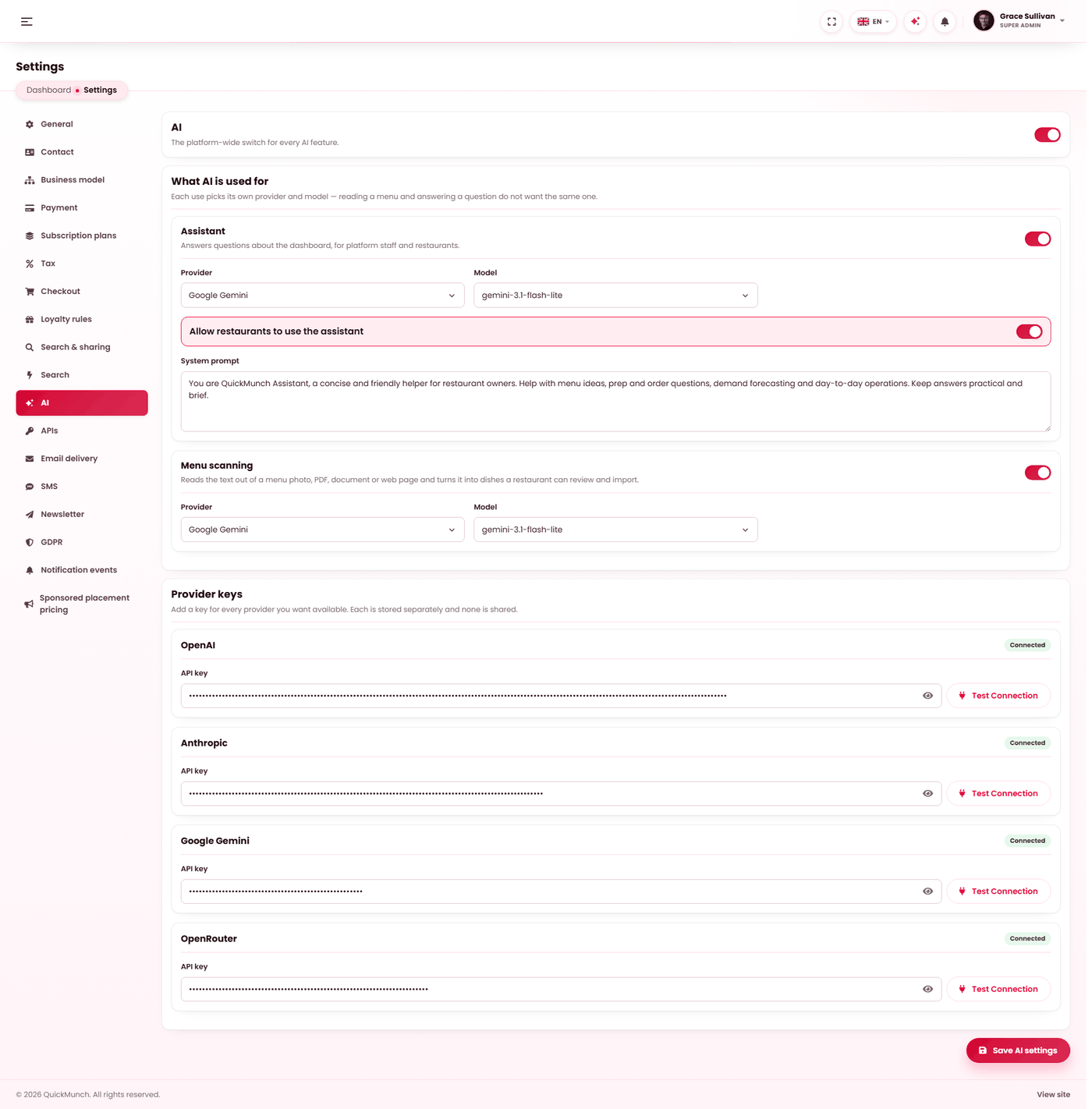
Bring your own key
Every AI feature is off until you supply a key. No AI credits ship with the product, nothing is proxied through us, and each request goes from your server to the provider you chose on your own account.
| Provider | Get a key |
|---|---|
| OpenAI | platform.openai.com |
| Anthropic | console.anthropic.com |
| Google Gemini | aistudio.google.com |
| OpenRouter | openrouter.ai |
Getting a key
Each provider issues its own. Create an account, generate a key, and paste it into Settings → AI. Most charge per request, so add a spend limit while you are there.
OpenAI
- Sign in at platform.openai.com.
- Create new secret key, name it, and copy it — it is shown once.
- Add billing under Settings → Billing; a key with no credit fails on first use.
Anthropic
- Sign in at console.anthropic.com.
- Create key, then copy it.
- Add credit under Billing.
Google Gemini
- Open aistudio.google.com and sign in with a Google account.
- Create API key and pick a project.
- Copy the key. A free tier exists, with rate limits.
OpenRouter
- Sign in at openrouter.ai.
- Create key and copy it.
- Add credit. OpenRouter fronts many models behind one key, including free ones.
The keys look like this, so you can tell at a glance whether you pasted the right one:
OpenAI       sk-...
Anthropic    sk-ant-api03-...
Gemini       AIza...
OpenRouter sk-or-v1-...One provider per job
Features are grouped by what they need, and each group picks its own provider and model. You can send text to one provider and images to another, or use one everywhere.
| Group | Used for |
|---|---|
| Text | Writing and rewriting descriptions and copy. |
| Vision | Reading an image — for example a photographed menu. |
| Image | Generating pictures. |
| Video | Generating video. |
| Assistant | The in-dashboard assistant. |
| Menu | Menu import and menu-building help. |
| Social captions | Writing the caption of a social post from the dish and the restaurant's own details — Write with AI on Quick Social's composers (Create campaign). Ships off; offered only while Quick Social is on. |
Talk to the dashboard
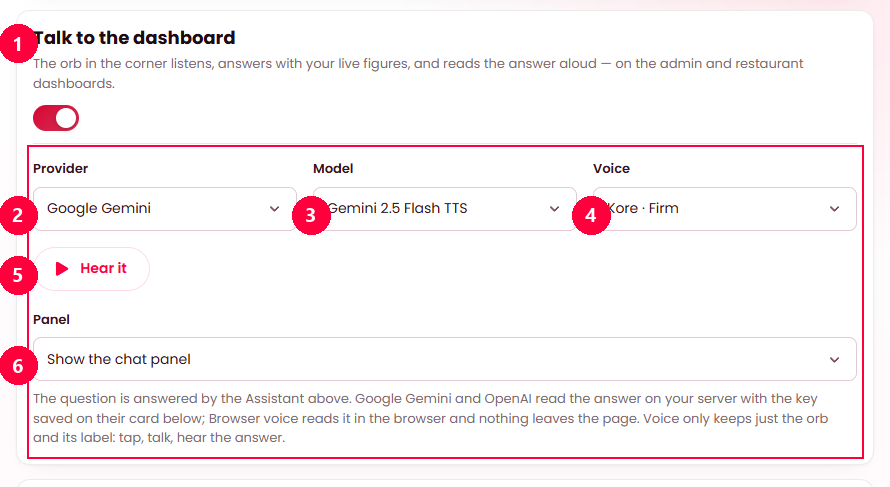
The assistant can also be spoken to. A Tap to talk button in the footer bar of the admin and restaurant dashboards listens, the assistant answers with the same live figures the chat uses, and the answer is read aloud. This card decides who does the reading.
- The switch. Off, and the button is gone for everybody; the footer shows View site again.
- Provider — Google Gemini or OpenAI read the answer on the server with the key on their card below; Browser voice leaves it to the browser's own voice, and nothing leaves the page.
- Model — the speech model; Custom… takes any other.
- Voice — every voice the provider offers, with its character.
- Hear it — reads one line with the choices above, before you save.
- Panel — whether the button opens a transcript you can also type into, or stays voice-only with a one-line label.
Press Save AI settings.
The button appears once the Assistant feature above is on and has a working key — it is the assistant that answers; the voice only reads. A speech provider without a key is not an error: the browser reads instead. Restaurants get the button under the same switch that gives them the assistant. It takes the place of View site in the footer bar; the sidebar's Back to site and the profile menu still lead to the site. See AI assistant → Talking instead of typing.
Letting restaurants use it
One switch decides whether restaurants may use the assistant. It runs on your key, so their usage is billed to your account — decide that before you switch it on, and treat it as a cost of the tier you are selling.
When it doesn't work
An AI button does nothing
No key for that group, or the feature is switched off — both live at Admin → Settings → AI. Text and vision are separate groups, so a key for one does not enable the other: check the group the button belongs to.
Requests fail after working
Usually credit or a rate limit on your provider account. The provider's dashboard says which; the key itself has not changed.