Create campaign
One composer for text, picture and video posts to every channel the branch has connected — starting from a dish if you like.
Restaurant → Quick Social → Create campaign
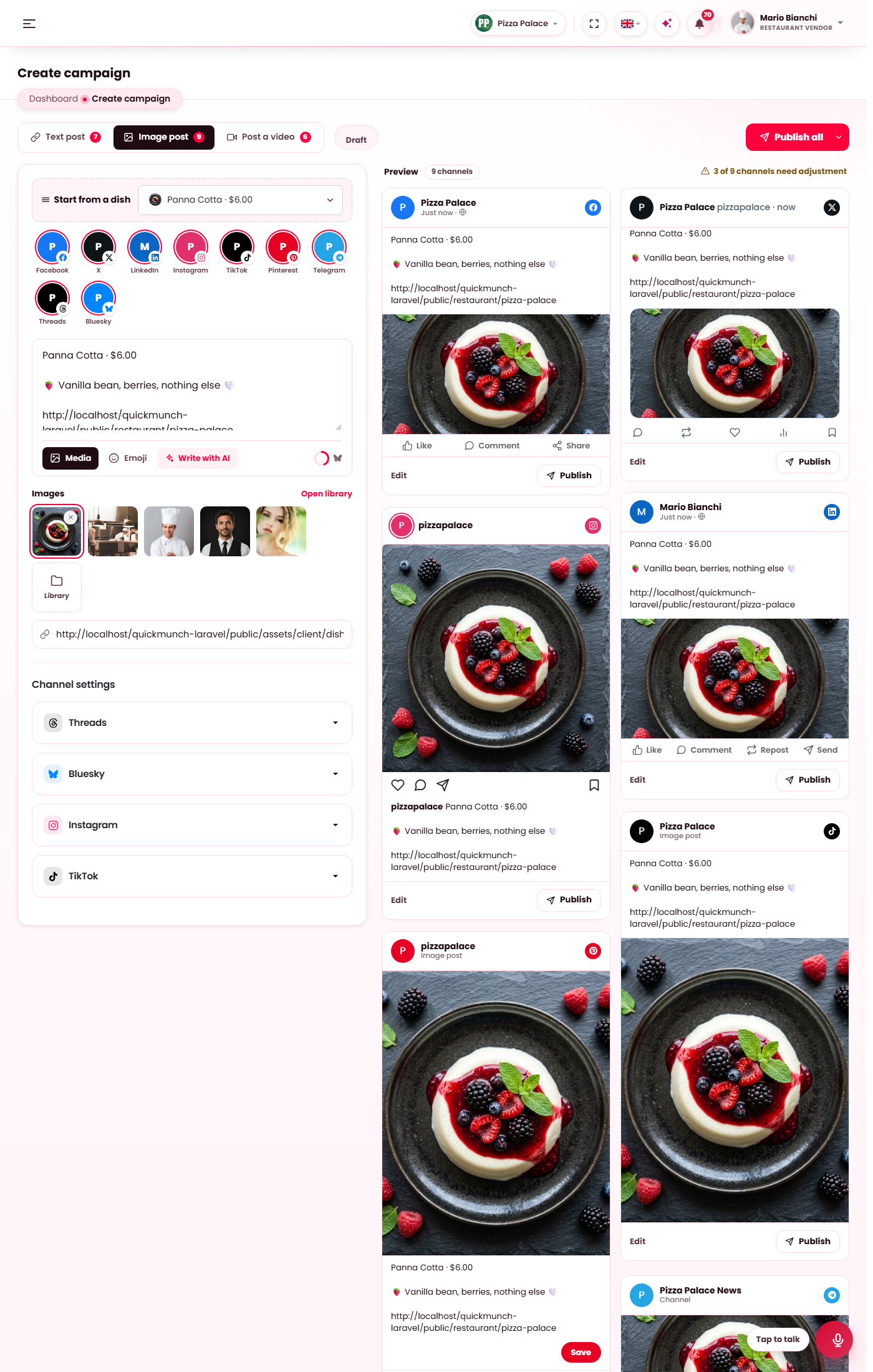
The composer on an image post: the post types, the dish picker, the channel chips, the message and pictures, and one preview per channel.
Three post types
The tabs at the top are the post types. Each one lists only the channels that accept it, and the number on the tab is how many channels are selected for it.
| Tab | What goes out | Channels |
|---|---|---|
| Text post | A message, with or without a link. The first link in the message is the post's link and is shown the way each channel shows a shared link. | Facebook, X, LinkedIn (and the LinkedIn Page you chose under Channels), Pinterest, Telegram, Threads, Bluesky |
| Image post | One or more pictures with a caption. | Facebook, X, LinkedIn, Instagram, TikTok, Pinterest, Telegram, Threads, Bluesky |
| Post a video | A video shared on the feeds, with a message. | Facebook, X, LinkedIn, Telegram, Threads, Bluesky |
Native video publishing — YouTube, TikTok, Reels and Pinterest video pins, with each platform's own settings — is its own page: Create video.
Start from a dish
The picker above the channels lists your dishes with their pictures. Picking one fills the composer: the dish's name and price on the first line, its description under it, its photograph as the picture and your restaurant's own storefront page as the link. You stay on the post type you were on; a dish with a photograph opens on Image post when nothing was chosen yet.
From there it is an ordinary post — edit anything. The campaign remembers the dish, so it shows picked when the campaign is opened again from a draft or the calendar.
Channels
One chip per channel the platform offers. A coloured chip is connected; click it to select or deselect it. On a fresh composer every connected channel is selected. A grey chip is not connected yet — hover it for the reason, and connect it under Channels.
Below the chips, Channel settings opens the options a selected channel has for this post type — the Pinterest board and link, for example.
Message, media, emoji, Write with AI
- Message — the text of the post. Every preview updates as you type.
- Media — the pictures (or the video) come from your own Media library: pick from the strip, open the library, or drop a file in, which lands in the library like any upload. There is no separate library for social posts.
- Emoji — inserts an emoji at the cursor.
- Write with AI — drafts the caption from a short brief and the dish. It works once the operator has switched on Social captions under Settings → AI, and each draft counts against the branch's monthly allowance when the operator set one.
Previews
One card per selected channel, drawn the way that channel shows the post, with the character counter where the platform enforces a limit. Edit on a card gives that channel its own text instead of the shared message; Publish on a card sends the post to that channel alone. A card that says a channel needs adjustment tells you what is missing before it can go out — a picture, a shorter text, a sign-in.
Draft, schedule, publish
| Control | What it does |
|---|---|
| Save draft | Keeps the campaign without sending it. Drafts are listed on the Calendar and under All campaigns, and the composer opens on the draft you last worked on. |
| Schedule | Pick a date and time; the time is read in the branch's time zone. The campaign goes on the calendar and the scheduler sends it (see Scheduled tasks). |
| Publish all | Shows the selected channels as they stand — a check for each one that is ready and what the others still need — then Publish now sends the open post type to every one of them. |
A publish run starts the moment the page answers and runs on the server; there is no queue worker to set up. The results card under the composer fills in as each channel answers, with the post's link or the error the channel returned. A channel that failed for a passing reason (an outage, a rate limit) is tried again after 5, 15 and 45 minutes.
Where a campaign goes next
- Campaign log — every publish run, channel by channel, with retries.
- All campaigns — the archive, and the record page of a sent campaign.
- Calendar — scheduled, published and missed campaigns, and the drafts.
When it doesn't work
A channel's chip is grey
It is not connected for this branch, or the platform does not offer it. Hover the chip; connect it under Channels.
A preview says the channel needs a new sign-in
The network refused the branch's token. Open Channels and sign in again; nothing is sent there until you do.
Instagram, Threads or TikTok could not fetch the picture
Those networks download the picture from your site themselves, so the site must be reachable from the internet with a valid certificate. A local or private address never works for them.
Write with AI says captions are not switched on
The operator turns on Social captions under Settings → AI and gives that feature a provider with a working key.