The Automated drips screen
Sequences that email customers on their own — who gets them, and how long the platform waits between steps.
Admin → The Automated drips screen
Scheduled message sequences, and how each is performing.
Where the words live
This screen decides who is emailed and when. What the email says is written in Email & templates, where every other message on the platform is written. One editor, one place to keep the tone consistent.
The master switch
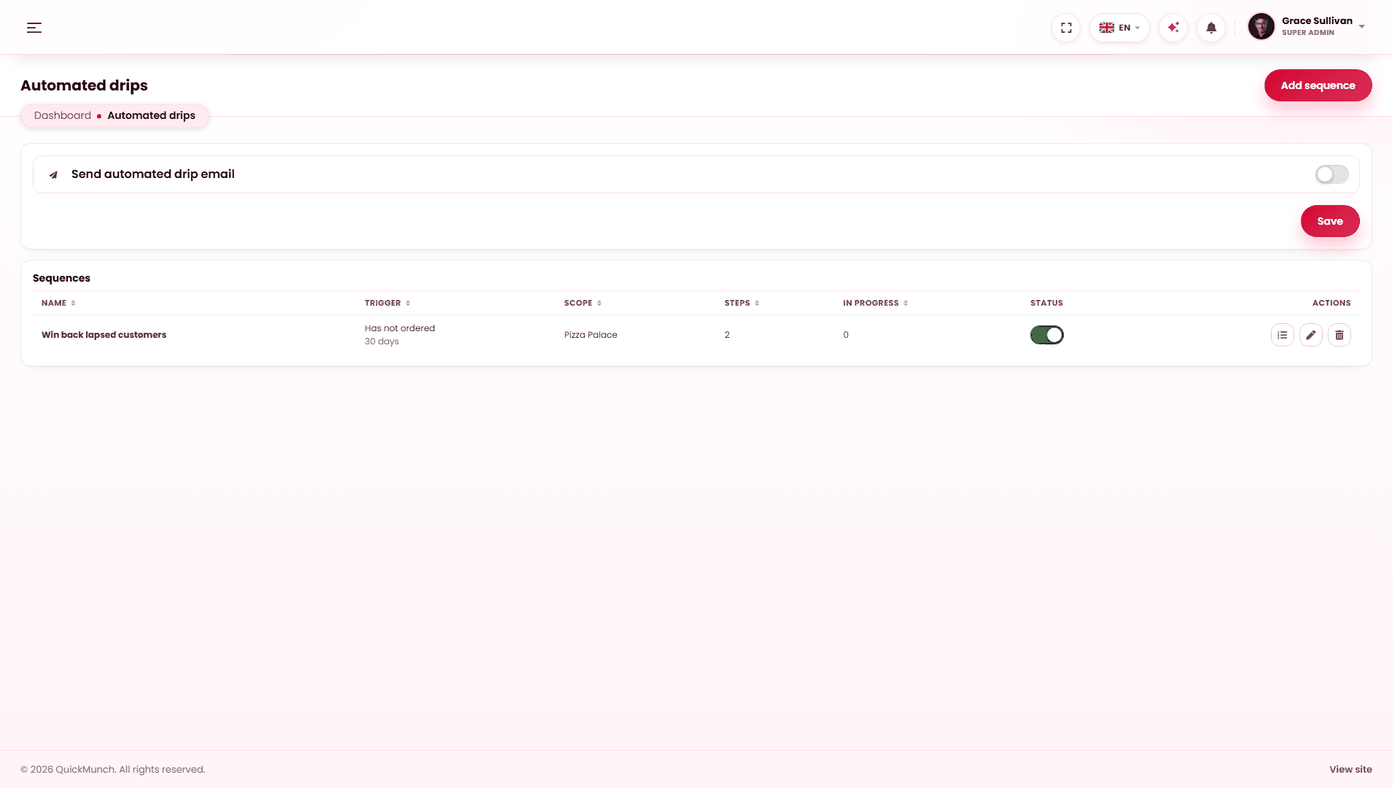
Send automated drip email at the top governs everything on the screen. It ships off, and a sequence built while it is off is built and idle rather than sending. The screen also warns you when no mail server is connected, or when every template is switched off — either makes sending impossible whatever you build here.
Building a sequence
- Name it for what it does — "Win back lapsed customers".
- Choose the trigger, which decides who is enrolled:
Trigger Enrols Suits Has not ordered Customers with no order for the number of days you set. Winning back people who drifted. Ordered recently Customers who ordered within that many days. A follow-up while you are still fresh in mind. Signed up recently Accounts created within that many days. Turning a registration into a first order. - Set the scope — the whole platform, or one restaurant.
- Add steps. Each step names a template and a wait: straight away, or a number of days after the previous one. Steps are at least a day apart.
The list shows each sequence's trigger, scope, step count, how many people are part-way through, and how many finished.
The warnings on a row are worth reading
| Warning | Meaning |
|---|---|
| Live, but it has no steps yet | The sequence is on and enrolling nobody anywhere. Add a step. |
| This template is switched off | The step is held rather than sent. Switch the template on, or point the step at another. |
| This template no longer exists | Repoint the step. |
How it runs
A scheduled task enrols people who match a trigger and sends the steps that have come due — up to 200 enrolments and 100 sends per run, so a large customer list is worked through steadily rather than all at once. Nothing is queued at all while SMTP is unconfigured. See Scheduled tasks.
Somebody part-way through a sequence carries on from where they are. Deleting a sequence deletes its steps and everyone part-way through it — the dialog says so.
When it doesn't work
Nothing is being sent
Four things, and it is almost always the first or the last:
- Send automated drip email is on, at the top of Admin → The Automated drips screen.
- A mail server is connected — Admin → Settings → Email.
- The step's template is switched on — Admin → Email templates.
- The drip job is running — Admin → System → Scheduled tasks.
Nobody is being enrolled
The trigger window matches nobody. "Has not ordered in 30 days" finds nothing on a platform that opened three weeks ago.
Somebody got a drip email after unsubscribing
Check the timing — a step already queued still goes. If it happens repeatedly, tell us; that would be a defect rather than a setting.