Scheduled tasks
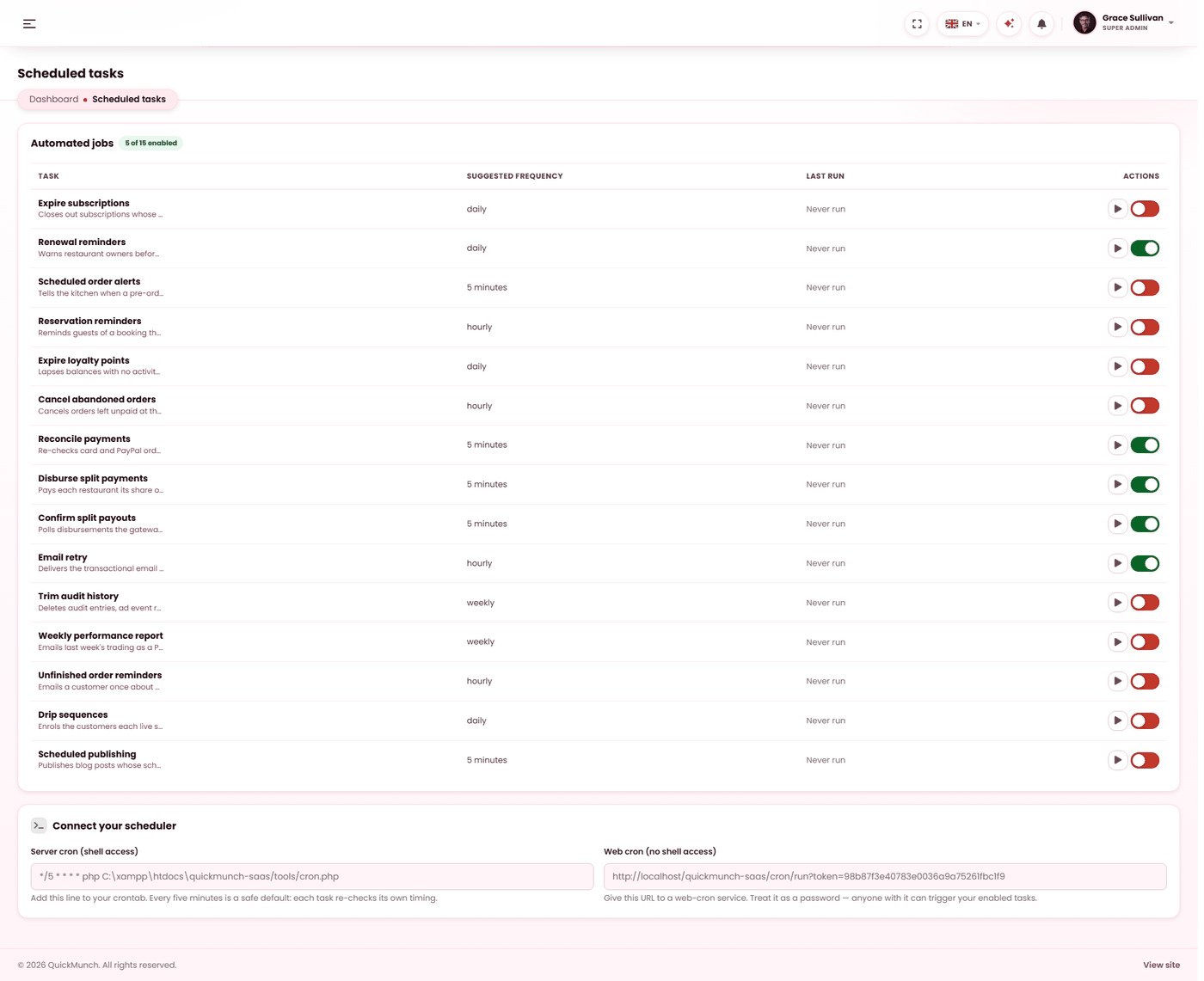
One cron entry runs fourteen background jobs. Without it, transactional email never leaves and unpaid orders are never cleaned up.
Admin → System → Scheduled tasks
- Copy the cron line shown on the screen.
- Add it to your host's scheduler, once every five minutes.
- Each job lists its last run so you can confirm it fired.
Why this matters more than it sounds
Most of QuickMunch works without any scheduler. A few important things do not, and the most important of them is email: order confirmations, status updates and password resets are queued and then delivered by a scheduled job. If nothing calls the scheduler, that queue is never emptied and no transactional mail leaves the site at all.
So this is a five-minute job on install day, not an optional extra.
Set up the cron entry
In your hosting control panel, add one entry that runs every five minutes:
*/5 * * * * /usr/bin/php /path/to/your/site/artisan schedule:runEvery job re-checks its own schedule, so a single five-minute entry is enough for all of them — the daily jobs still run once a day. You never need more than one cron line.
To check it by hand before you trust it:
php artisan qm:cronWhat runs, and when
Six jobs are on from a fresh install. The rest ship off, because they email customers, publish content or delete history — none of which should start happening on a site you are still setting up. Turn each one on when you are ready for it.
| Job | Runs | On by default | What it does |
|---|---|---|---|
| Email retry | Hourly | Yes | Delivers the transactional email queue and resends anything the mail server refused. This is how that mail leaves at all. |
| Expire subscriptions | Daily | Yes | Closes subscriptions whose term has ended and tells the owner. |
| Renewal reminders | Daily | Yes | Warns restaurant owners before their subscription lapses. |
| Reconcile payments | 5 minutes | Yes | Re-checks card and PayPal orders left unpaid and confirms any capture the browser return or webhook missed. |
| Disburse split payments | 5 minutes | Yes | Sends each restaurant its share of the orders you collected. |
| Confirm split payouts | 5 minutes | Yes | Polls transfers the gateway is still processing and marks them paid, or flags a failure for review. |
| Scheduled order alerts | 5 minutes | No | Tells the kitchen when a pre-ordered ticket is nearly due. |
| Reservation reminders | Hourly | No | Reminds guests of a booking the day before. |
| Cancel abandoned orders | Hourly | No | Cancels orders left unpaid at the payment step for more than a day. |
| Unfinished order reminders | Hourly | No | Emails a customer once about an order they left unpaid, between one and twenty hours after checkout. |
| Expire loyalty points | Daily | No | Lapses balances with no activity for a year, recording the adjustment in the ledger. |
| Drip sequences | Daily | No | Sends the step that is due, and stops a sequence the moment somebody orders again or unsubscribes. |
| Scheduled publishing | 5 minutes | No | Publishes blog posts whose time has arrived, then rewrites sitemap.xml. |
| Weekly performance report | Weekly | No | Emails last week's figures to the people you nominate. |
| Social posts due | 5 minutes | Yes | Sends scheduled social campaigns and videos whose time has come, tries again channels that failed for a passing reason, and marks a campaign found more than a day late as missed. In the catalogue only while Quick Social is on (Settings → Tools). |
| Social channel check | Hourly | Yes | Asks each connected social account whether its sign-in still works and tells the owner once when one needs signing in again. Only while Quick Social is on. |
| Read social proof | Hourly | Yes | Reads the Social proof sources of up to ten restaurants whose last read is more than six hours old, and files the new guest posts for approval. Only while Quick Social is on. |
| Trim audit history | Weekly | No | Deletes audit entries, ad event records and run history older than a year, so no log grows forever. |
How to tell it is working
The Scheduled tasks screen records every attempt: when it ran, how long it took, what it touched and whether it succeeded. A job you have not enabled is shown as skipped rather than failed, so an untouched install never looks broken.
When it doesn't work
Customers are not receiving order emails
Check Email retry first. If the scheduler is not running, mail sits in the queue and never leaves, however correct your SMTP settings are. Confirm your SMTP credentials on Email & templates second.
The screen shows no runs at all
The cron entry is not firing. Check the PHP path — many hosts need a specific binary such as
/usr/local/bin/php82 rather than plain php — and confirm the path to
artisan is absolute.
Payouts are stuck as pending
Disburse split payments and Confirm split payouts both need to be running. The first sends the money, the second confirms it arrived.