Email & templates
Connecting a mail server, editing the fourteen messages the platform sends, and reading the log when one does not arrive.
Admin → Settings → Email · Email templates · Email log
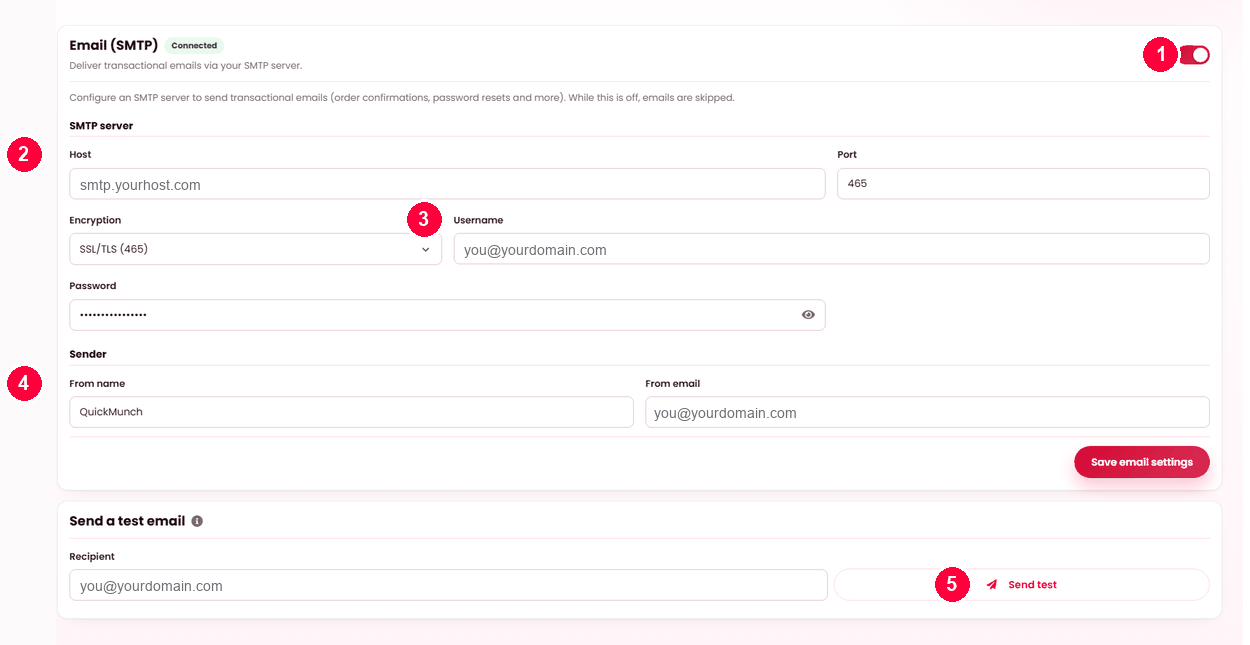
- Enable SMTP.
- Host, port and encryption from your mail provider.
- Username and password.
- From name and address.
- Send a test email before you rely on it.
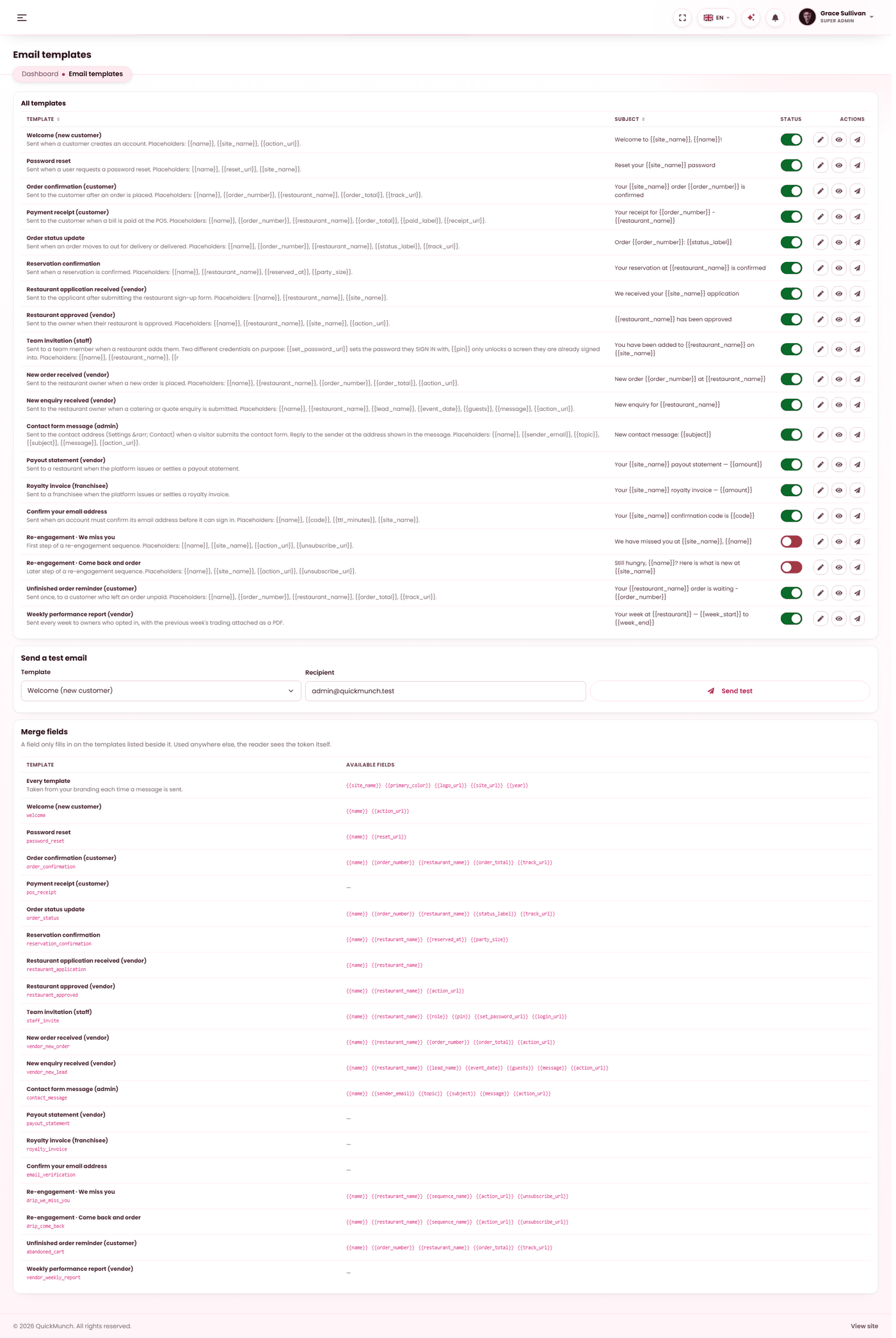
Every message the platform sends. Edit the wording; the placeholders stay.
Do this before anything else
Almost every complaint that reaches you — "I never got my order confirmation", "my password reset never came", "the restaurant was not told about my order" — is one broken thing: mail is not being delivered. It is worth getting right on day one rather than diagnosing it later under pressure.
Connecting a mail server
Settings → Email holds four things:
| Field | Notes |
|---|---|
| From name | Who the message appears to be from. Your platform's name. |
| From address | The address it is sent from. Use one at your own domain. |
| Use SMTP | Switch this on. Without it the server's own mail function is used, which most hosts either disable or send straight to spam. |
| Host, port, encryption, username, password | From your mail provider. They publish these; you do not invent them. |
The twenty-one templates
The set is fixed — you cannot add or delete templates, because each one is sent by a specific event in the product. You can rewrite every word of all of them, and switch any of them off.
| Template | Sent when |
|---|---|
| Welcome | Somebody registers. |
| Password reset | Somebody asks to reset a password. |
| Order confirmation | A customer places an order. |
| Order status | An order changes state. |
| Reservation confirmation | A table booking is accepted. |
| Restaurant application | A restaurant applies to join. |
| Restaurant approved | You approve one. |
| Staff invite | A restaurant adds a team member. |
| New order (restaurant) | An order arrives, told to the restaurant. |
| New enquiry (restaurant) | A catering or quote enquiry arrives. |
| Contact message | Somebody uses your contact form. |
| Abandoned cart | Once, about an order left unpaid. |
| Catering order received / New catering order (restaurant) | A catering order is placed — to the customer and to the restaurant, with the event. |
| Catering tomorrow | A day before a catering event, to both. |
| Restaurant claim received / approved / not approved | A claim goes to review, and when you decide it — to the claimant. See Claims. |
| New restaurant claim (admin) | A proven claim waits for you; sent to the contact address. |
| Drip: we miss you / Drip: come back | Steps in a re-engagement sequence — see Automated drips. |
Editing one
Each template opens on its own screen: subject, preheader and body on the left, a live branded preview on the right that updates as you type. The body has two tabs — Visual for rich text, and HTML for the raw source when you want control.
The preheader is the grey line an inbox shows after the subject. Leave it blank and one is generated from the message.
Merge fields
Tokens in double braces are replaced when the message is sent. The editor lists only the tokens that template actually resolves — a token borrowed from another template would go out as literal text in a real message, so the list is the safe set rather than a catalogue.
Five are available in every template whatever the event: site name, primary colour, logo, site address and the current year. They come from your branding, so a template picks up a rebrand without being re-edited.
Switching one off
Each row has a switch. Switching a template off stops that message being sent at all — reasonable for the abandoned-cart email, unwise for password reset.
Test send
Send any template to yourself with sample values filled in. The button tells you when mail is not configured rather than failing on click — if it says so, finish Settings → Email first.
Mail is queued, not sent inline
This is the mechanism worth understanding, because it explains the most common support case.
Order confirmations, status updates and the restaurant's new-order alert are written into an outbox rather than sent while the customer waits. That is deliberate: sending inline made checkout hang on the mail server, and a slow mail server should never be able to stall a payment.
The outbox is drained by the Email retry scheduled task, which ships on — it is the delivery path, not an optional extra. It sends up to 25 messages per run, retries a failure after 2, 4, 8 then 16 minutes, and gives up after five attempts, marking the message failed with the provider's own words.
The email log
Every message the platform has tried to send, with three states:
| Status | Meaning | What to do |
|---|---|---|
| Sent | Handed to your mail server successfully. | Nothing. Delivery beyond that is your provider's business. |
| Pending | In the outbox, waiting for the next run. | Nothing — unless it has been pending for hours, which means the task is not running. |
| Failed | Five attempts, all refused. | Open it and read the error. It is the mail server's own words. |
Filter by status, search by recipient or subject, and open any row to see the full message and its error. Resend tries one again immediately. Prune deletes old sent entries — failures and pending messages are never pruned, because those are the ones you need.
When it doesn't work
Nothing is being delivered and the log is full of Pending
The Email retry task is not running — the single most common cause on the platform. Go to Admin → System → Scheduled tasks, find Email retry and switch it on. The queue drains on the next run; nothing in it was lost.
Everything is Failed with an authentication error
Username or password is wrong. Many providers require an app-specific password rather than the one you sign in with.
Mail is sent but lands in spam
The from address and the SPF/DKIM records above. A "Sent" status means your server accepted it, not that an inbox did.
One kind of message never arrives, others do
That template is switched off. Go to Admin → Email templates and turn the switch on in that template’s row.
A template shows {{tokens}} in the real email
A token was used that the template does not resolve. Use only the fields the editor lists for that template.