Floor plan
Your dining room drawn to scale: zones, tables you drag into place, live status, and combined tables.
Restaurant → Tables
This is not reservations
The floor plan is where your tables are and what state they are in right now. Bookings live on Reservations. The two are connected — seating a booking occupies its table — but the jobs are different, and so are the screens.
Zones first
A table belongs to a zone: indoor, terrace, upstairs, whatever your room actually is. Zones are the tabs down the side, and Add table is disabled until at least one exists — a table with nowhere to be is not a useful record.
Adding a table
| Field | Notes |
|---|---|
| Zone | Which part of the room. |
| Label | What staff call it — "12", "Window 2". Keep it short; it is drawn inside the table. |
| Seats | 1 to 30. This is what party sizes are matched against. |
| Shape | Square, long or round. Drawn to match, so the plan resembles the room. |
| Status | Its state now — see below. |
| Combine code | Optional. Tables sharing a code are treated as one unit. |
| Active | Off hides the table from bookings while keeping it on the plan. |
| Kiosk | Gives this table its own self-order kiosk — see Kiosks. |
New tables land at a default position; drag them where they belong. Lock grid freezes positions once you are happy, so a stray touch during service cannot rearrange the room.
- Add table — opens the fields above.
- Shapes — drag square, long or round onto the plan. Edit changes one already placed; Lock grid freezes positions.
- Zones — switch room, or Add zone for a new one.
- Status counts — vacant, occupied, cleaning, reserved, maintenance, totalled live.
- Floor plan / Timeline — the two views of this zone.
To remove one, open it with Edit and delete it there; turning Active off instead keeps it on the plan but out of bookings.
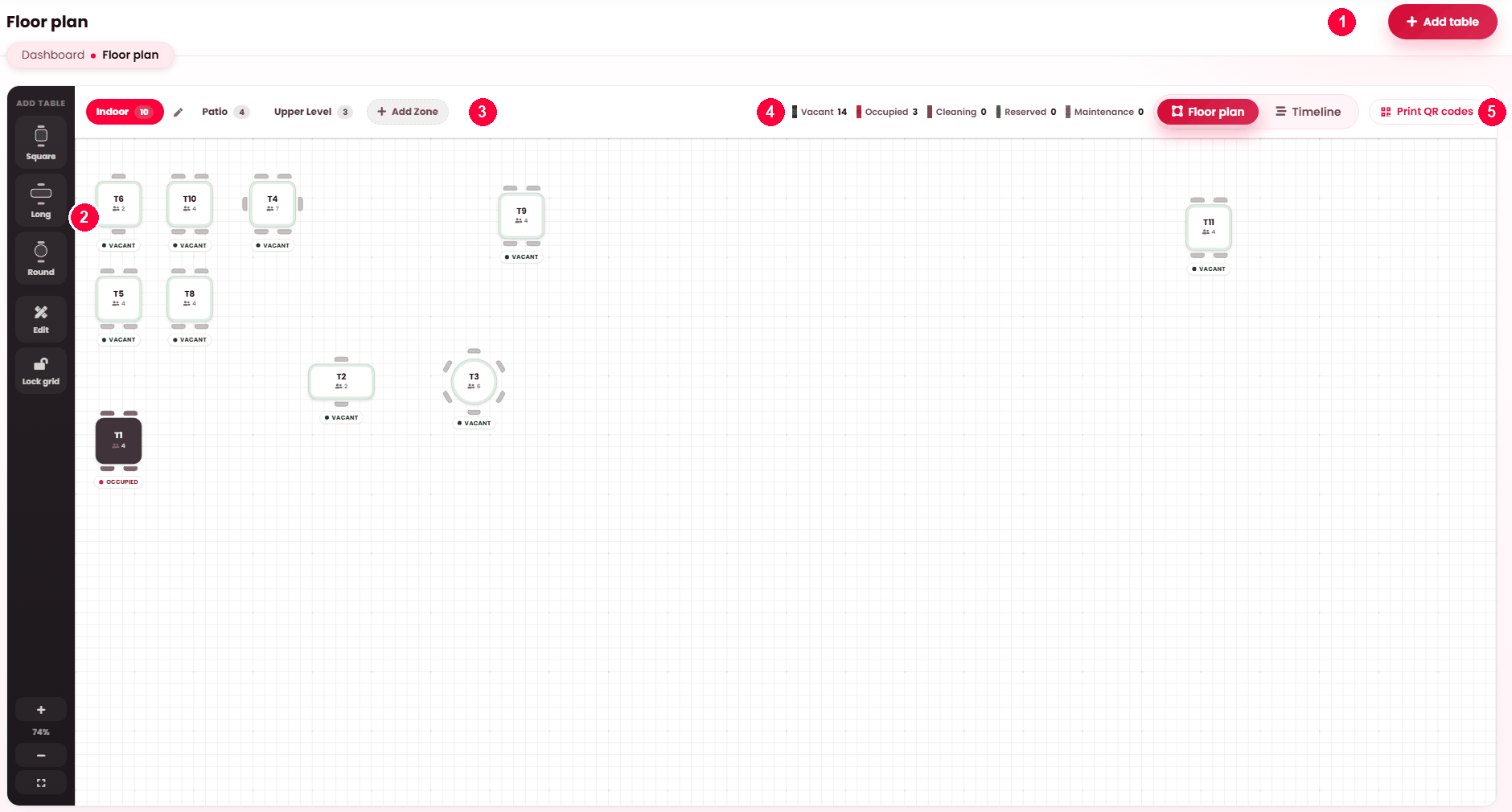
The five states
| Status | Meaning |
|---|---|
| Vacant | Free. |
| Occupied | Guests at it. Set automatically when a booking is seated. |
| Cleaning | Being turned around. Not offered to bookings. |
| Reserved | Held for a booking that has not arrived. |
| Maintenance | Out of use — broken chair, water leak. |
Counts per state sit above the plan, so "how many tables are free" is answered without counting colours.
What a table tells you
Each table on the plan carries more than its status:
- How many bookings it has today, and clicking through to that schedule.
- When the next one is due — "due now", or "in 20 min".
- Whether it is free until a time, or free for the rest of the day.
- Whether it is combined with others, and with which.
- Whether it is hidden from bookings.
Reserve this table opens the booking form with the table already chosen.
Combining tables
Give two or more tables the same combine code and they are treated as one unit — the way you would push tables together for a party of ten. They show as combined on the plan and their seats count together.
Floor plan and timeline
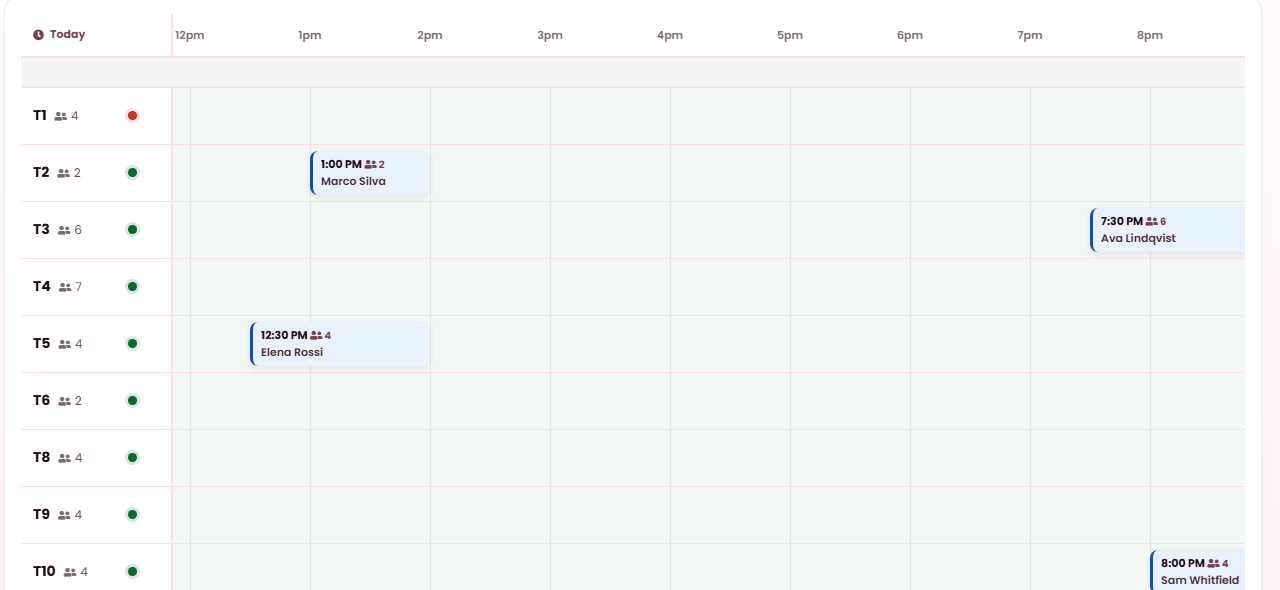
A second view switches the same zone from the room layout to a timeline: each table as a row across the day, with its bookings as blocks. The plan answers "where"; the timeline answers "when", and is the faster way to spot the gap you could sell.
Each row is a table; each block is a booking, showing the time and the party size. A Now marker tracks the current hour.
Read it for the gaps: two hours clear on a six-top at 5pm is a table you could still sell tonight. Clicking a block opens that booking.
QR codes
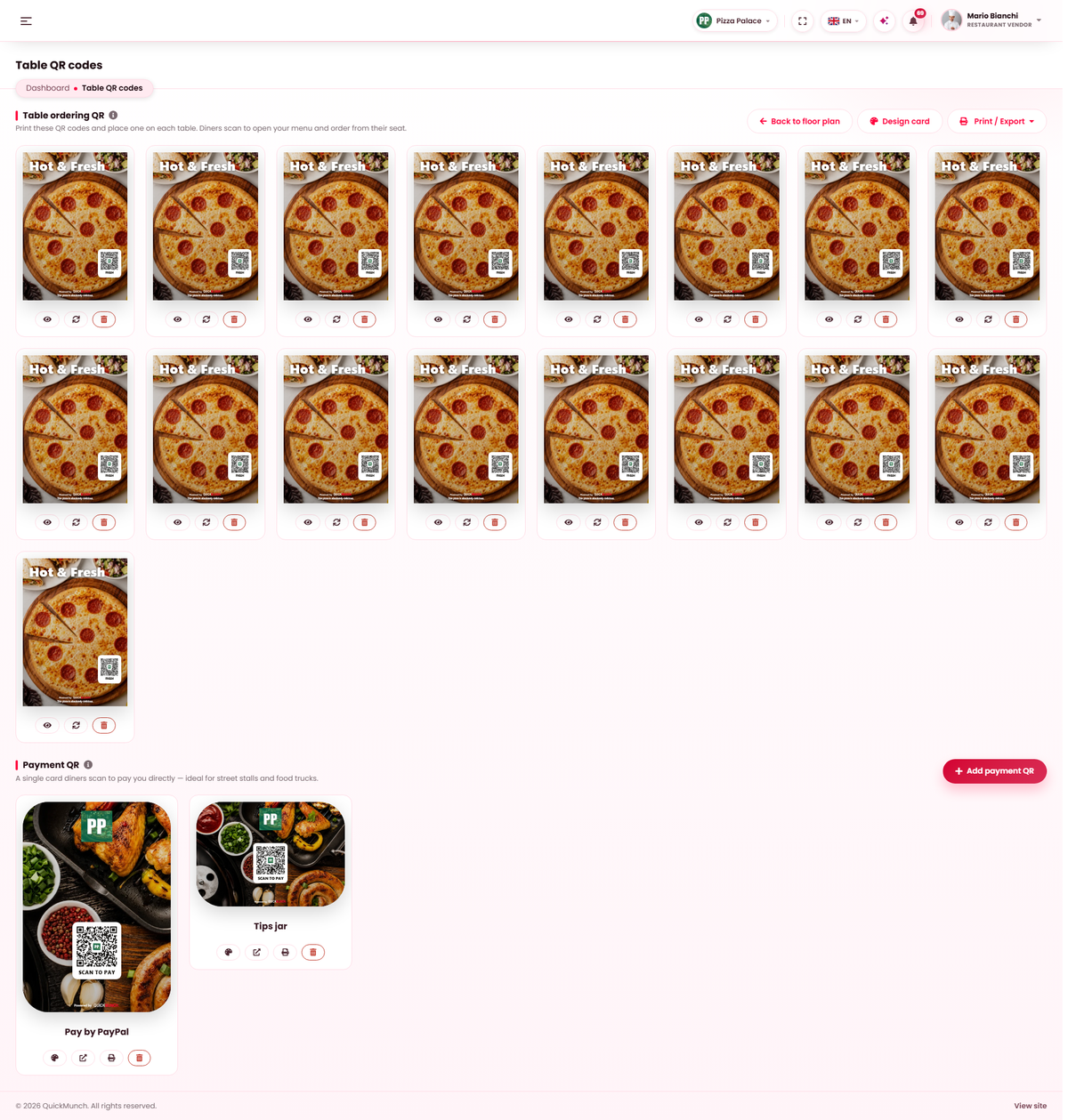
- Choose the zone whose tables you want.
- Press Print QR codes.
- One card per table is laid out, each carrying that table’s own code, plus a payment QR for the venue.
- Print the sheet, or Design card to style it first on QR cards.
A guest scanning a card lands on your menu with that table already attached, so the order reaches the kitchen knowing where to take it.
When it doesn't work
I cannot add a table
A table has to belong to a zone. Press Add Zone on Restaurant → Tables first — Add table stays disabled until one exists.
Tables move when I do not mean them to
Switch Lock grid on.
A table never appears in bookings
Open the table on Restaurant → Tables and check two things: Active is on, and Status is not cleaning or maintenance. Inactive is the one that catches people — it is easy to switch off and forget.
A table is stuck occupied
Its booking was seated and never completed. Complete the booking, or set the status here.
The QR sheet is empty
The zone has no tables, or none is active.