QR cards
Two things with similar names: the plain code sheet, and the designed table card. Both let a guest scan and order from where they sit.
Restaurant → Tables → Print QR codes · Design card
Which one you want
| Screen | Produces | Use it when |
|---|---|---|
| QR code sheet | A plain sheet of codes, one per table, labelled. | You are testing, or you will put the codes in your own holders. |
| Table card design | A designed card, front and back, ready to print and stand on the table. | It is going in front of customers. |
Both work from the same table codes, so a card you design uses the code the sheet would print. Design once and it applies to every table's card.
The code sheet
Reached from the floor plan with Print QR codes:
- One card per table — its label and its code.
- Design card — the designed table card, front and back.
- Print / Export — the printable sheet.
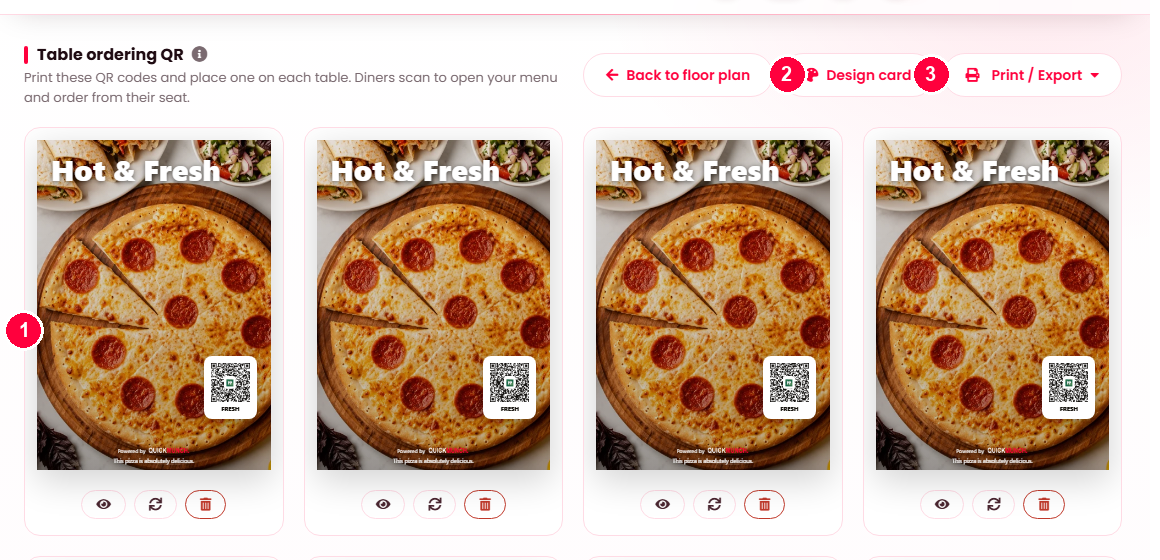
Two things you can do from here:
- Regenerate a table's code. The old one stops working immediately — the right move if a card left the building or was photographed and shared.
- Delete a table, which takes its code with it and cannot be undone.
Designing the card
Two sides, front and back, either portrait or landscape. Each side can carry:
| Element | Options |
|---|---|
| Background | None, a colour, or an uploaded image. |
| Logo | Show or hide, with a position and a size. |
| The QR code | Show or hide, with a position, a size and a caption — "Scan to order" by default. |
| Table number & zone | Printed on the card, so a guest and a server both know which table it is. |
| Logo inside the code | Your mark in the middle of the QR itself. |
| Featured product | A dish on the card. The back is the natural place for it. |
| Footer note | A disclaimer or a line of small print. |
A side with nothing on it reads This side is blank in the preview, so an accidentally empty back is obvious before you print a hundred.
Practical printing
- Keep contrast high. A dark code on a light background scans; anything clever often does not.
- Leave the quiet space around the code alone — do not crowd it with the design.
- Laminate them, or accept reprinting after a month of wiped tables.
Your platform may publish starter designs — see Design templates.
When it doesn't work
The sheet is empty
The zone has no tables, or none is active. Add tables on the floor plan first.
A code stopped working
It was regenerated. Every card carrying the old code needs reprinting — which is the point of regenerating, but worth knowing before you press it.
Scanning opens the menu but not the table
The card is on a different table from the one it was printed for. The table number on the card is there to make that visible.
The design does not appear on the printed card
Save the design first, then print. The preview is live; the print reads what was saved.