Channels
The social accounts this branch publishes to: one card per network, its state, who it posts as, and how each network is connected.
Restaurant → Quick Social → Channels
One card per channel the platform offers, with its state and the account it posts as.
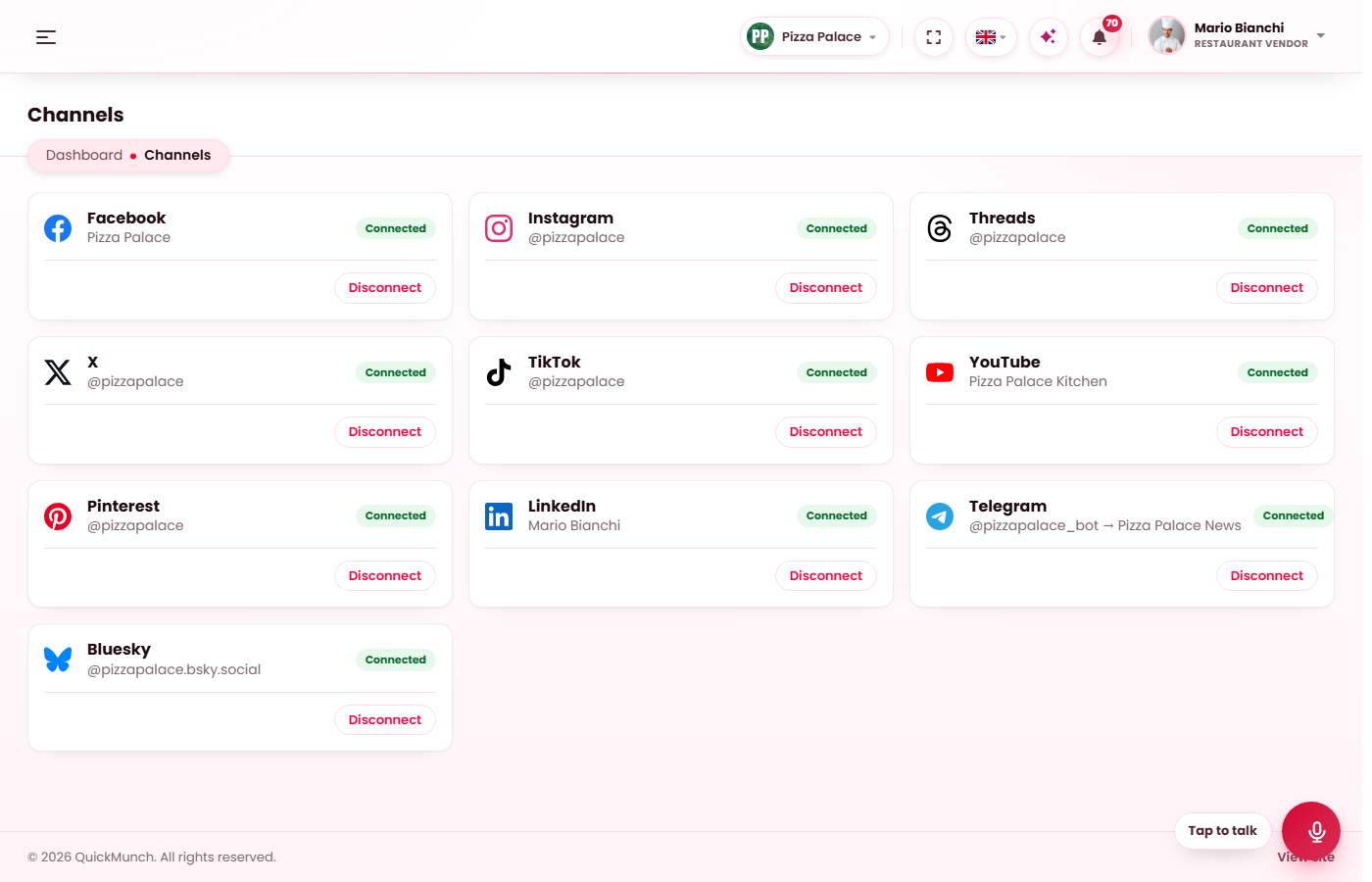
The cards
One card per channel the platform offers, with its state and the account it posts as. A connection belongs to this branch: another branch of the same owner connects its own accounts, and switching branch in the top bar shows that branch's cards.
| State | Meaning |
|---|---|
| Connected | Posts go out. The hourly check confirms the sign-in still works. |
| Sign in again | The network refused the branch's token. Nothing is sent there until you sign in again; the owner was told once. |
| Problem | The last check could not reach the network; the sign-in itself is not in doubt. |
| Not finished | The branch saved its own app keys and has not signed in yet. |
| Not connected | No account yet. |
| Not available yet | The platform has not set up this network's app; the operator does that under Settings → Tools. |
Connecting
- Connect — for the networks that sign in (Facebook and Instagram, X, LinkedIn, TikTok, YouTube, Pinterest, Threads): the network's consent screen opens, you allow the access, and the card shows the account. Instagram comes with the Facebook Page it is linked to, so it has no sign-in of its own.
- Keys — Telegram takes a Bot token and a Channel or chat ID; Bluesky takes a Handle and an App password. Both are checked with the network as they are saved.
- Post as — Facebook lists the Pages the sign-in may manage; LinkedIn offers your profile or a company page you administer. Text posts can go to both the profile and the page.
- Disconnect — removes the account and its tokens from this branch. Posts already on the network stay there.
When the operator has chosen that each branch registers its own network app, the card asks for the branch's App ID and App secret (or Client ID and secret) and shows the Redirect address to register in the developer portal; Save and sign in then opens the consent screen. When the platform provides the app, the card only signs in.
Connecting each network
These are the steps each developer portal asks for, for the operator (platform app) or the branch (own app). Every app must carry this redirect address exactly, with your own domain:
https://your-domain.com/vendor/social/connect/{provider}/callback
where {provider} is facebook, twitter, linkedin,
tiktok, youtube, pinterest or threads. The
networks accept https addresses only, so the site must be online with a valid certificate before
a channel can be signed in. Portals change their wording now and then; the pieces stay the same.
Facebook Page and Instagram
- Go to developers.facebook.com/apps and press Create app. Choose the Business type, name it after your brand, and pick the Business portfolio that owns your Page if you have one.
- Add the Facebook Login for Business product. Under its Settings, paste the redirect address for
facebookinto Valid OAuth Redirect URIs and save. - Open App settings → Basic. Copy the App ID and the App secret into the Meta app card (Settings → Tools) or the Facebook card.
- Press Connect on the Facebook card. Facebook asks which Pages the app may manage; allow the Page you post to, then pick it under Post as. A professional Instagram account linked to the Page connects at the same time.
- While the app is in Development mode only people with a role in the app can sign in. To let other restaurants connect their Pages, submit the permissions for App review and switch the app to Live.
X
- Sign in at developer.x.com, choose a plan and create a Project, then an App inside it.
- Under User authentication settings choose Read and write, Web App, paste the redirect address for
twitteras the Callback URI and your site as the Website URL. - Under Keys and tokens copy the OAuth 2.0 Client ID and Client Secret into the X app card.
- Press Connect on the X card and allow the access; the token is renewed by itself from then on.
- Go to linkedin.com/developers/apps and press Create app; every app needs a LinkedIn Page it belongs to.
- On the Products tab request Share on LinkedIn and Sign In with LinkedIn using OpenID Connect. To post as a company page, also request the Community Management API, which LinkedIn reviews.
- On the Auth tab paste the redirect address for
linkedin. Copy the Client ID and Primary Client Secret into the LinkedIn app card. - Press Connect and allow the access, then choose Post as: your profile, or one of the pages you administer.
TikTok
- Sign in at developers.tiktok.com, open Manage apps and press Connect an app; TikTok requires your Terms of Service and Privacy Policy addresses.
- Add Login Kit and Content Posting API. In Login Kit paste the redirect address for
tiktok; in Content Posting API turn on Direct Post. - Add the scopes user.info.basic, video.upload and video.publish and submit the app for review.
- Copy the Client key and Client secret into the TikTok app card and press Connect on the TikTok card. Until TikTok approves the app, every post is visible only to the account.
YouTube
- Open console.cloud.google.com, create a project, and under APIs & Services → Library enable the YouTube Data API v3.
- Under the OAuth consent screen set the app name and emails, choose External, and add the Google accounts that will sign in as test users. Publishing the app to production needs Google's verification for the YouTube scopes.
- Under Credentials create an OAuth client ID of type Web application with the redirect address for
youtube. - Copy the Client ID and Client secret into the Google app card and press Connect on the YouTube card.
- Convert the account to a business account, then open developers.pinterest.com/apps and press Connect app.
- Add the redirect address for
pinterestunder Redirect URIs. Copy the App ID and App secret into the Pinterest app card. - New apps start in trial access, which allows posting to your own account; request standard access when other accounts need to connect.
- Press Connect on the Pinterest card and allow the access. The board a pin lands on is chosen in the composer.
Telegram
- In Telegram open a chat with @BotFather, send /newbot, and answer with a name and a username ending in bot. BotFather replies with the bot token.
- Open your channel or group, go to Administrators and add the bot with the right to post messages.
- On the Telegram card enter the Bot token and the Channel or chat ID — the handle of a public channel, such as @yourchannel, or the numeric ID of a private one — and press Connect. The bot and the channel are checked as they are saved.
Threads
- Go to developers.facebook.com/apps and create an app; when asked what it should do choose Access the Threads API (a Threads app is separate from a Facebook app).
- Under the use case add threads_basic and threads_content_publish. Under Settings paste the redirect address for
threadsunder Redirect Callback URLs. - Copy the Threads App ID and Threads App Secret (they differ from the Facebook ones) into the Threads app card.
- Under Roles → Threads testers invite the Threads account that posts and accept the invitation in the Threads app, then press Connect on the Threads card.
Bluesky
- In Bluesky open Settings → Privacy and security → App passwords and press Add app password. Copy the password shown once.
- On the Bluesky card enter the Handle (such as yourname.bsky.social) and the App password and press Connect. Never use the account's main password here.
Checklist
| Channel | What the platform's app needs | What the branch does | Portal |
|---|---|---|---|
| App ID, App secret | Connect, then Post as (the Page) | developers.facebook.com | |
| — | Comes with the Facebook Page | Linked to the Page | |
| X | Client ID, Client secret | Connect | developer.x.com |
| Client ID, Client secret | Connect, then Post as | linkedin.com/developers | |
| TikTok | Client key, Client secret | Connect | developers.tiktok.com |
| YouTube | Client ID, Client secret | Connect | console.cloud.google.com |
| App ID, App secret | Connect | developers.pinterest.com | |
| Telegram | — | Bot token, Channel or chat ID | @BotFather |
| Threads | App ID, App secret | Connect | developers.facebook.com (Threads use case) |
| Bluesky | — | Handle, App password | Bluesky settings, App passwords |
When it doesn't work
Connect says the network's app is not set up yet
The operator has not saved that app's keys under Settings → Tools, or chose that each branch registers its own app — in which case the card asks you for the keys.
The sign-in comes back with "did not match this session"
The branch was switched in another tab while the consent screen was open, or the sign-in took too long. Press Connect again from the branch you mean.
A card keeps going back to "Sign in again"
The network revokes the token — the app is still in development mode and the account is not a tester, or the app lost a permission. Check the app in its portal, then sign in again.