Image studio
A picture for a post from a dish photograph: restaurant templates with the price, moods that keep the food looking like food, and text and shape layers.
Restaurant → Quick Social → Image studio
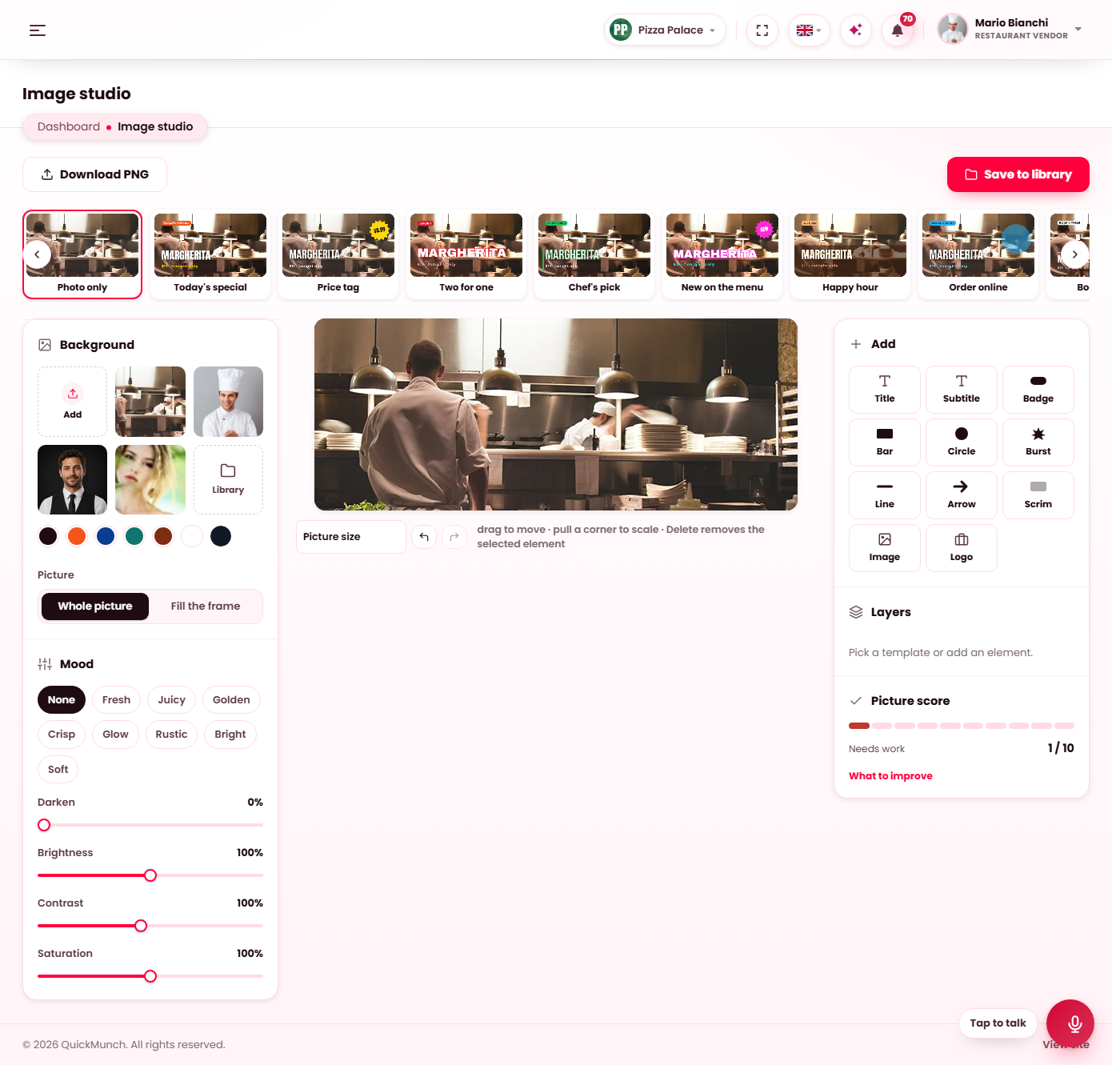
The studio: templates across the top, the background and mood on the left, the canvas, and the layers on the right.
The picture
The canvas takes the picture's own size, so what you save is the photograph as it was — nothing is cropped or stretched. Whole picture keeps all of it; Fill the frame lets a chosen frame size crop it. Picture size offers the social sizes (landscape, square, portrait, story) when a frame is wanted instead.
Under Background: Add uploads a picture, the strip shows the newest pictures of your library, Library opens all of them, and the swatches give a plain colour. Opened from the video composer with a video, the first frame of that video is the background.
Templates
The strip across the top lays out the picture with a restaurant message — Photo only, Price tag, Big price, Two for one, Lunch deal, Happy hour, New on the menu, Fresh from the oven, Order online, Book a table, Weekend brunch, Opening hours, Delivery night, Family Sunday, Dessert first, Menu card, Menu panel, Price strip, Offer stack, Centre plate. Every tile is drawn on your current picture, so you see the result before choosing. A template puts its text and shapes on the canvas as layers; edit them like any other.
Mood and adjustments
The moods — Fresh, Juicy, Golden, Crisp, Glow, Rustic, Bright — only lift the picture's colour; none of them dims or dulls a dish. Under them, Brightness, Contrast and Saturation fine-tune it, and Thickness / height sets the weight of the selected text.
Layers
Add puts a layer on the canvas: Title, Subtitle, Badge, Bar, Circle, Burst, Line, Arrow, Scrim, Image and Logo (your restaurant's logo). Drag a layer to move it, pull a corner to scale it, press Delete to remove the selected one. The Layers list orders them and hides or removes each. Text layers offer the fonts bundled with the product and an emoji picker.
Saving
Download PNG saves the picture to this computer. Save to library puts it in your Media library — and when the studio was opened from the video composer or a video's record page, it goes back there as the cover.
When it doesn't work
Save to library is refused
The library refused the file: it is larger than the server's upload limit, or the uploads folder is not writable. See Media library.
The video's frame does not appear as the background
The browser could not read the video. A file from the library always works; a hosted address must allow the picture to be read from another site.