Checkout rules
What a customer must give you before they can order, and what you add to the bill.
Admin → Settings → Checkout
Set it up
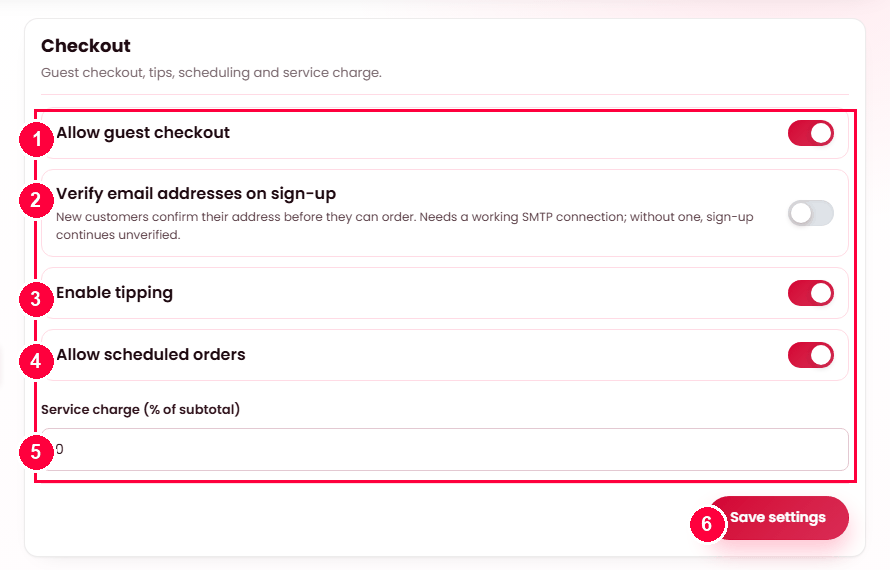
- Allow guest checkout — order without creating an account.
- Verify email addresses on sign-up — new customers confirm their address before they can order.
- Enable tipping — the tip belongs to the restaurant and is not commissioned.
- Allow scheduled orders — the customer picks a time; a closed restaurant can still take an order for later.
- Service charge (% of subtotal) — added to every order; 0 to charge none.
- Press Save settings.
Guest checkout, weighed up
There is no right answer, only a trade:
- On — fewer people abandon at the account step. Best when most orders are one-off or impulse.
- Off — every order carries an account, so loyalty, order history and marketing all work. Best when you expect people to come back.
If you run loyalty, guests cannot collect points. That usually settles it.
Delivery limits
The smallest and largest delivery radius a restaurant may set for itself. These are boundaries for the platform — each restaurant chooses its own radius inside them, on its own profile.
When it doesn't work
Customers say they never got the verification email
Check SMTP, then check that the Email retry scheduled task is running — mail is queued and delivered by that job. See Scheduled tasks.
Scheduling is on but a customer cannot pick a time
Slots are built from the restaurant's opening hours and preparation time, so a restaurant with no hours offers nothing to choose from. Set them at Restaurant → Settings → Opening hours & dates, or do it for them from Admin → Restaurants.