Homepage layouts
Six ready-made front pages. Choose which one serves your front door, and edit the bands each one draws.
Admin → Settings → General → Homepage layout
The six layouts
Pick one under Settings → General → Homepage layout. Each is also a real page
with its own address, so you can run one at / and link the others from your menu.
Marketplace
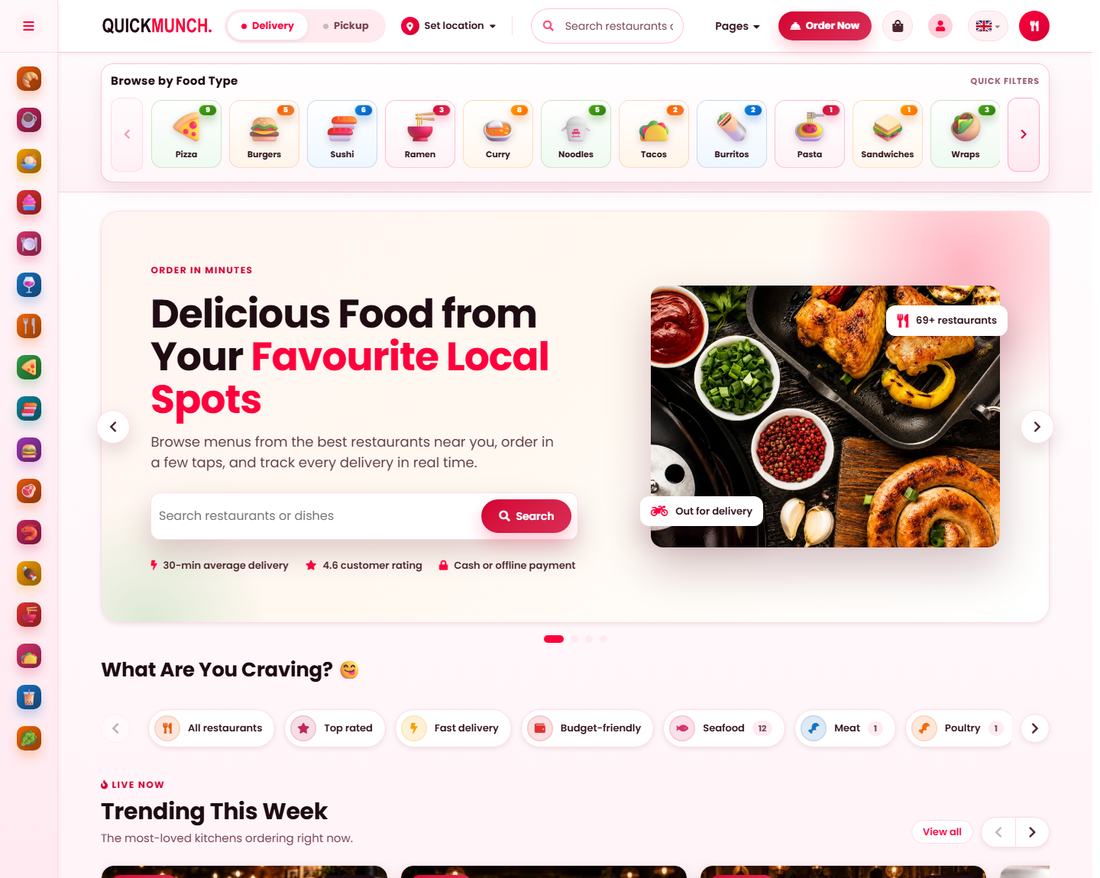
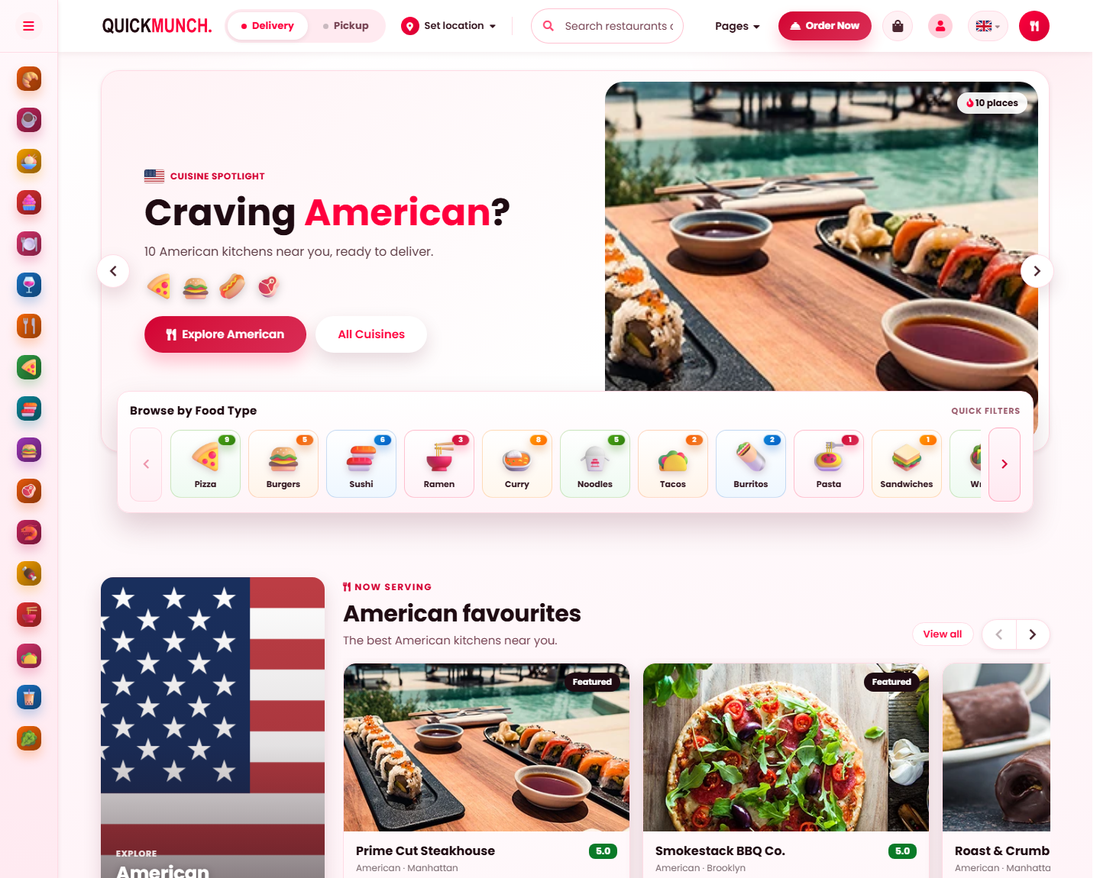
Cuisine spotlight
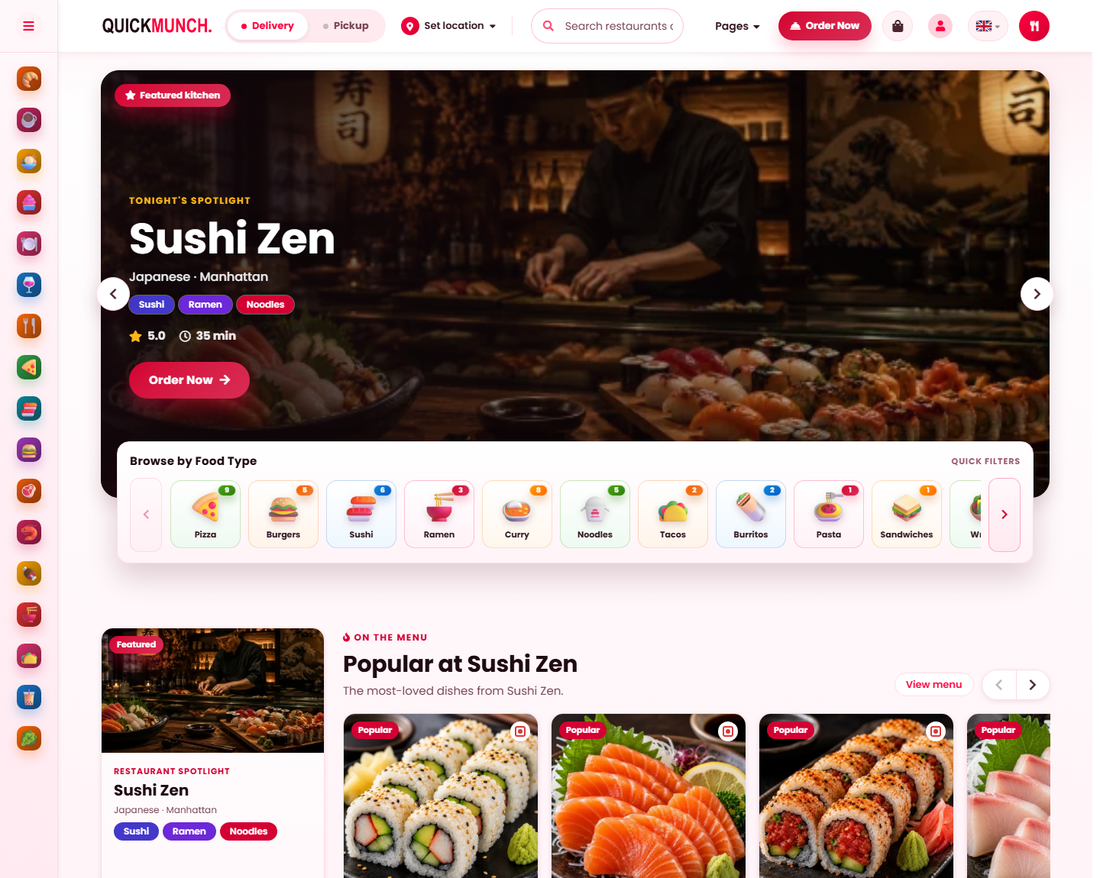
Restaurant spotlight
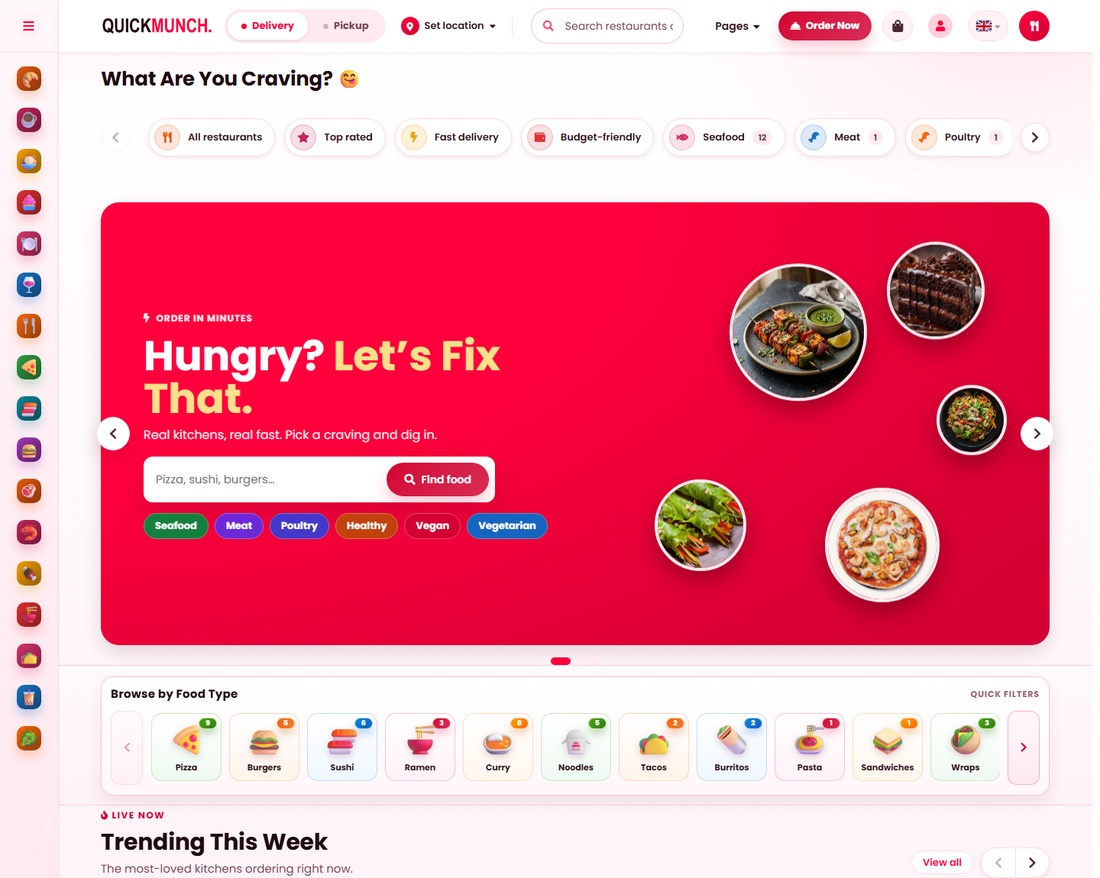
Hungry man
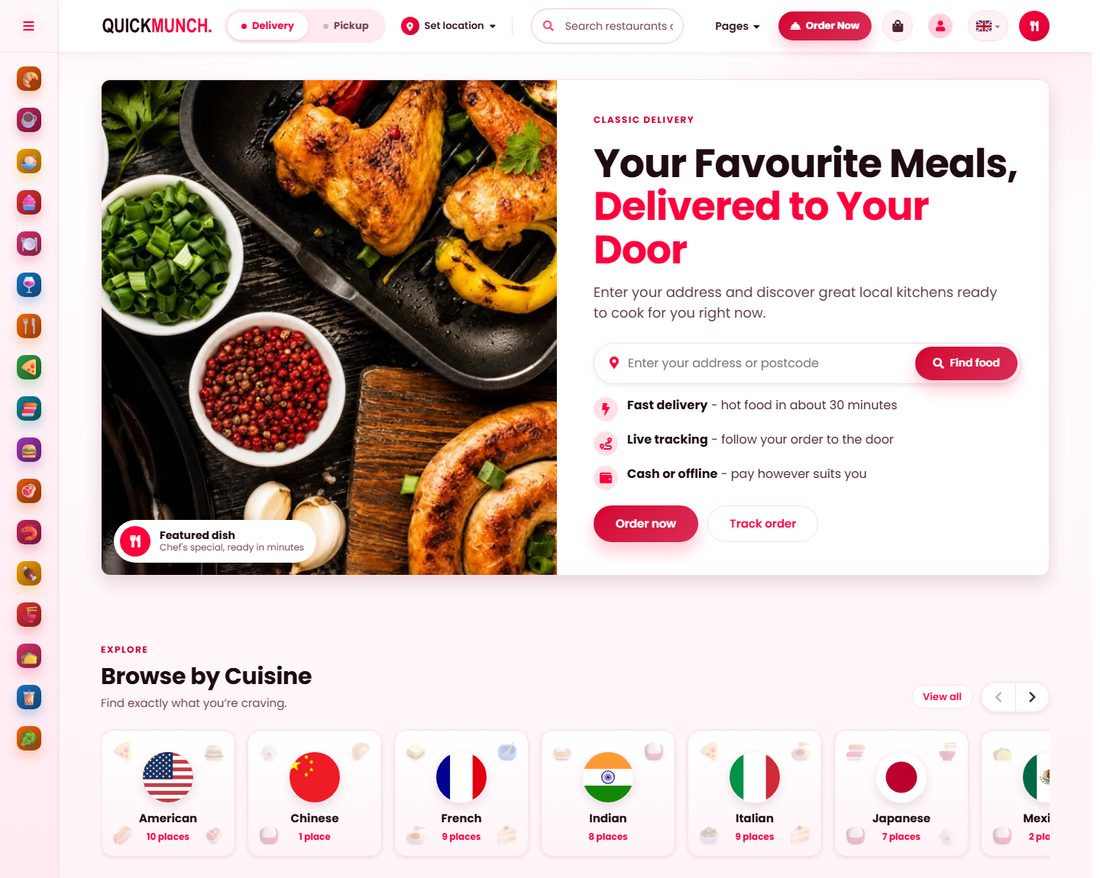
Classic
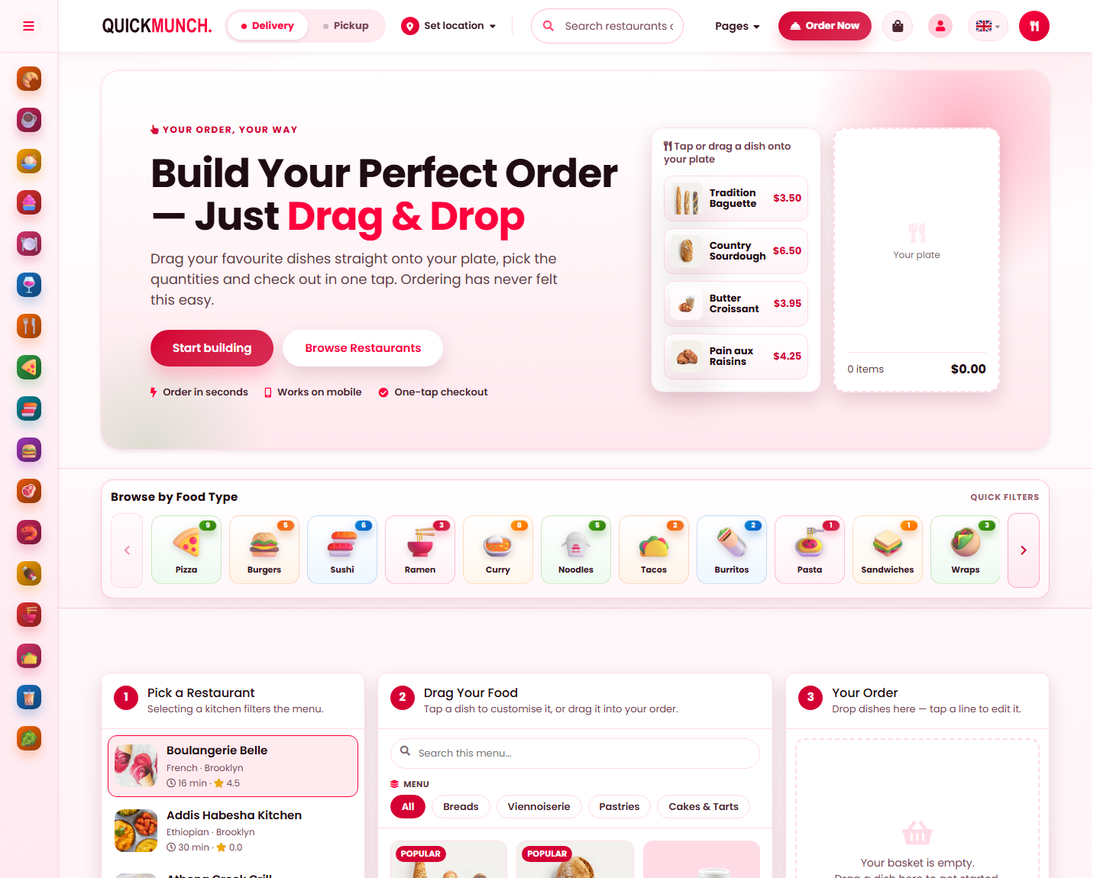
Order builder
Choosing one
The picker is a grid of preview cards, one per layout. Each card scrolls its own screenshot when you hover it, so you can see the whole page rather than the top of it, and the small i beside the name explains what it leads with. Pick the radio on the card you want and save.
Choose by your inventory, not by taste
Each layout leads with something different, and a layout that leads with what you have not got makes a healthy platform look empty. Pick the one your content can fill.
| Layout | Leads with | Suits you when |
|---|---|---|
| Marketplace | Featured restaurants, trending, collections. | You have enough restaurants for a "trending" list to mean something. |
| Cuisine Spotlight | Top cuisines, each with its restaurants. | Your strength is variety — several cuisines, a few venues each. |
| Restaurant Spotlight | Featured restaurants, each with its dishes. | You have a handful of strong venues rather than many. |
| Hungry Man | A dense mix of everything. | You have plenty of everything and want it all above the fold. |
| Classic | A split-screen delivery hero. | Delivery is the whole proposition and you want one clear message. |
| Order Builder | An interactive build-your-order landing. | You are closer to a single kitchen than a directory. |
All six exist at once
This is the part that surprises people. Every layout is a real page with its own address, whether or not it is the one serving your front door:
| Layout | Address |
|---|---|
| Marketplace | /marketplace |
| Cuisine Spotlight | /cuisine-spotlight |
| Restaurant Spotlight | /restaurant-spotlight |
| Hungry Man | /hungry-man |
| Classic | /classic |
| Order Builder | /order-builder |
The one you choose is served at / as well as at its own address. So you can run
Marketplace as your homepage and still link Cuisine Spotlight from the
navigation as a second browse page. You are then running two
pages, which matters for the next section.
Editing what a layout shows
The picker chooses the layout; Pages edits it. Each layout has its own row in the Pages list — the one currently serving your front page is marked Home — and opening it gives you the layout's bands in the order the page draws them.
Every band has a Visible switch, and the ones with wording have their own fields:
| Kind of band | What you can change | Examples |
|---|---|---|
| Written | The switch, plus headings, subheadings and paragraphs. | Hero, newsletter, closing banner. |
| Built from your data | The switch only — there is nothing to type. | Featured restaurants, Trending now, Deals, Popular dishes, Customer reviews, From the blog. |
The hero folds its slides one at a time so a slider is editable slide by slide. A paid slide is not among them: its wording, picture and link come from the running ad campaign — see Sponsored placement.
Trying one
Switching layout changes nothing but which page is served at /. Your restaurants,
menus, orders and band settings are untouched, and switching back restores exactly what you
had. Look at the result on a phone before you settle: most customers arrive on one.
When it doesn't work
The homepage has empty gaps
A band is switched on with nothing to draw — no featured restaurants, no live deals, no published posts. Either fill it or switch that band off in the layout's editor.
Featured restaurants are not showing
They must be approved, have a published menu, and be marked as featured. All three — see Restaurants.
A band I want is not in the editor
The editor lists only the bands the running layout actually draws, because the layouts share their bands and a flat list would offer switches that do nothing. If a band is missing, that layout does not include it — switching layout is the way to get it.
I edited the homepage and nothing changed
Check which row you opened. The layout marked Home is the one at /;
editing any of the other five changes a page that is live at its own address but is not your
front door.